ClassCanvas learning management system

Manage everything outside class
on one screen

Attendance, assignments and feedback, tests and retakes, video lectures, study plans, and sharing with parents. Academy admins, teachers and students see the same records, each on their own screen. It uses the same account as the ClassCanvas live class program.

You can try live classes yourself with a free trial, but the learning management screens are hard to see before you try them. That's why this page walks through each menu with real screenshots.

Screenshot coming soon: Academy admin dashboard Academy admin dashboard — shows the status of live classes, video lectures and KakaoTalk messages, along with total students, today's attendance rate and the number of ungraded assignments and tests on one screen
Academy admin dashboard — today's attendance rate and assignments and tests waiting for grading appear on the first screen.

Your classes become records, with no extra input

Teachers teach as usual, and students solve problems as usual. Attendance, notes, materials, grading and solving videos are saved automatically as the class goes on, and carry over to the next class and to learning management.

1Classes without interruptions

Simultaneous feedback with an assistant teacher, notes that stay after a refresh or reconnect, and last class's materials ready to reopen. Live class board →

2The system does the organizing

Only the students who need it retake a test, and wrong answers are collected in wrong-answer notes to solve again. Wrong-answer notes →

3Parents follow along on their phone

Parents watch their child's class live through an observation link and get attendance, test and assignment notices by KakaoTalk message. Parent observation →

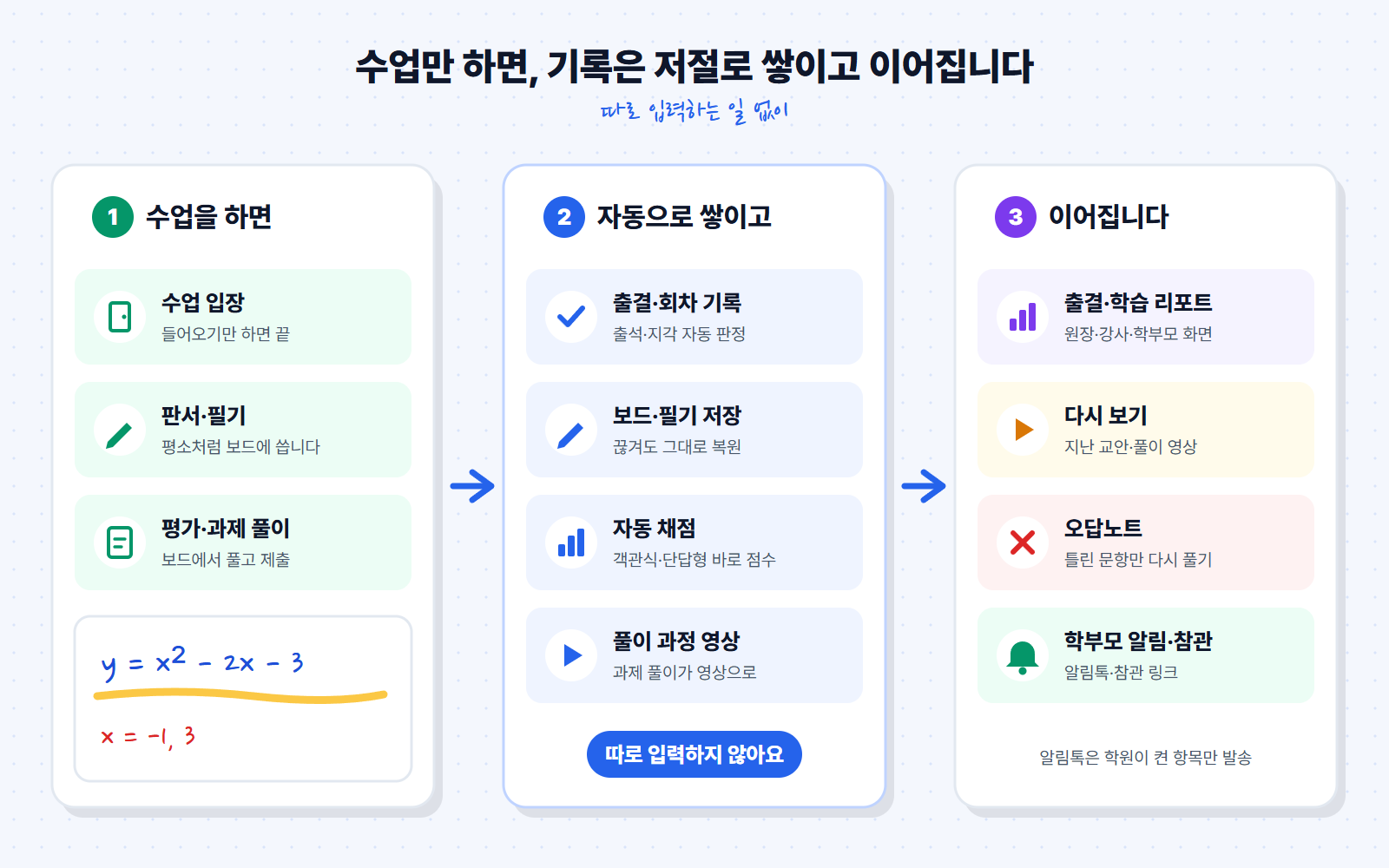
0Records that build up with no input

At each step, people only teach and solve problems as usual. The system handles the gray steps on its own.

  1. StudentJoins classPresent or late is recorded automatically from the join time, and academies with KakaoTalk messages turned on send parents an attendance notification
  2. AutomaticBoard writing and notes savedBoard content is saved to the server, so it comes back as it was even after a disconnection
  3. AutoRemembers where you left offIn the next class, last time's material opens from the page you were on
  4. AutoGrading and wrong-answer notesMultiple choice and short answer are graded automatically; questions answered incorrectly go to wrong-answer notes
  5. AutoSolution videos savedHow students solve their assignments is uploaded as video for teachers and directors to play and download
Three-step flow diagram: when you teach a class (starting the class, board writing and notes, solving tests and assignments), attendance and session records, saved boards and notes, automatic grading, and videos of the solving process build up automatically. These lead to attendance and learning reports, replays of past lesson plans and solution videos, wrong-answer notes, and KakaoTalk messages and observation links for parents
How records from a class carry over to the next class, learning management, and the parent screen
ClassCanvas live class program

What you can do on the class board

The attendance, lesson plan and test records in learning management start in live classes. Here's an overview, from assistant teacher feedback to pen types and per-student tests.

Assistant teacher screen giving feedback on one student's board during individual mode
The assistant teacher gives separate feedback on a student's board during individual mode.
1-1 Assistant teachers

Several teachers give feedback in one class

For each class, choose assistant teachers from the academy's teacher accounts. In individual mode, the lead teacher and assistant teachers give feedback to different students at the same time.

  • Only one teacher gives feedback to a student at a time — if another teacher is already doing so, it shows who
  • During feedback, audio goes only between 1 teacher ↔ that 1 student — conversations from other feedback sessions don't mix in
  • Load class materials uploaded by the lead teacher and open them right on the student's board during feedback
  • The lead teacher handles switching between whole-class and individual mode, screen share, and ending the class
1-2 Student video protection

Student video goes only to teachers

Students' camera video goes only to the teacher's screen. Video paths between students aren't just hidden on screen; they're blocked at the server permission level.

  • Students receive only the teacher's video and audio
  • Student audio also normally goes only to the teacher — only while a student is presenting (screen share) is their voice heard by the whole class
  • The teacher's screen also receives student video only while "View students" is on
Lead teacher's material list showing last class's material and a Resume button at the top
The material you were viewing last class appears at the top of the list, and "Resume" opens it from that page.
Board after refreshing and rejoining, with earlier notes still in place
Even after refreshing or losing connection, the board and notes stay as they were.
1-3 Disconnect recovery · Last class's material

After a disconnect or in the next class, you pick up right where you left off

Board content is saved to the server automatically. There's no need to press a save button.

  • Even if teachers or students refresh or lose network and rejoin, the board and notes come back
  • If a teacher refreshes during feedback, they automatically return to feedback with the same student
  • The teacher's screen shows a reconnecting notice, and if the student receiving feedback disconnects, it shows "Waiting for reconnection"
  • In the next class, "Last class's material" appears at the top of the lead teacher's material list — press "Resume" to open it at the page last viewed
  • PDF materials open up to 30 pages at a time
NoteNotes written only on a student's device during a long disconnect may be synced to the teacher's screen when reconnecting and may not be kept. Last class's material is based on materials opened in whole-class mode.
Screenshot coming: pen type comparison A board with the same expression y = x² + 1 written line by line with a pen, fountain pen, brush pen and watercolor. At the bottom, where two watercolor circles overlap, the color is darker.
The same equation written with the pen, fountain pen, brush pen and watercolor
Screenshot coming: finger drawing The finger drawing button on the board toolbar is on, with a notice that finger drawing is on. The board shows a circle and a check mark drawn with a finger.
Turn on the finger drawing button in the toolbar to write without a pen.
1-4 Pen types · Finger drawing

Like writing on paper, even without a pen

Write on the board like on paper with pressure-sensitive pens, or use your finger on tablets and phones without a pen.

  • Fountain pen and brush pen — line width changes with pressure
  • Watercolor — a brush that gets darker where strokes overlap
  • Finger drawing — turn on and off with a toolbar button; palm touches are detected automatically
  • The toolbar resizes to fit the screen width — buttons aren't cut off even on small tablets

For supported and recommended devices, see Class devices →

Dragging a function graph on the board to move it and change its slope
Drag a graph to move it or change its slope, and it moves the same way on students' screens.
1-5 Function graphs

Explain by moving graphs directly

Drag function graphs on the board to change them, and the whole class watches the changes together.

  • Drag to translate, adjust slope and quadratic coefficients
  • Rotate in 90-degree steps and reflect
  • Live preview on other screens even while you adjust

Watch the graph board demo →

Window for choosing a test for one student during individual mode in a live class and pressing Start test
In individual mode, choose and start a different test for each student.
1-6 Per-student tests

Different tests for each student in individual mode

During individual mode in class, pick a student and start the test that suits them right away.

  • Pick a student, choose a test, then "Start test"
  • Results are recorded in test management in learning management — and lead to grading, retakes and wrong-answer notes

See test rounds and retakes →

At a glance

Three roles, one connected record

The same menu offers different things for each role. Academy admins see the whole academy, teachers see their students, and students see their own records.

Menu Academy admin Teacher Student
DashboardService status, usage period, academy-wide statsAssigned students, ungraded assignments, number of testsUnsubmitted assignments, tests not taken, upcoming deadlines
MembersRegister students and teachers, activate or suspend, temporary passwordsView students in assigned classesCheck my info and class
AttendanceAcademy-wide attendance, class management, PDF reportsCreate live classes, attendance for assigned classesMy attendance report (focus level only at participating academies)
Study plansCompletion rate by teacher, calendar by student, reassignment approvalAssign students, write plans, approve rewards, parent reportsCheck off plans, completion rate and grade, streaks
AssignmentsAcademy-wide submission status, play and download assignment videosCreate assignments, review assignment videos, red-pen feedback, share with parentsSolve on the board and submit with recording, check feedback
TestsAcademy-wide test statusCreate tests, automatic and essay grading, retakes by round, wrong-answer notesTake tests on answer sheets or by handwriting, check scores, retry from wrong-answer notes
Video lecturesTurn on the video lecture service, manage storage and listsCourseware and quizzes, viewing analytics, video storageResume playback, playback speed, section repeat, quizzes
Notifications and noticesTurn on KakaoTalk messages by type, write noticesCheck sent notifications, read noticesRead notices
Past lesson plans–View all live class lesson plans in one placeView all my lesson plans in one place
Academy websiteThemes, AI text editing, Kakao chat consultation––

Log in and three doors open

After logging in, teachers and students choose one of three boxes: "Live class", "Content" or "Learning management". Live class opens the ClassCanvas live class program, Content opens the board screen you write on with a pen, and Learning management opens the management screens described on this page. Academy admins go straight to the admin dashboard when they log in.

If the academy turns off live classes, the "Live class" box is not shown.

Screenshot coming soon: teacher and student home screen (3 boxes) Home screen after a teacher or student logs in — three boxes side by side: Live class, Content and Learning management
Teacher and student home screen — choose Live class, Content or Learning management.
Where would you like to start?
PART 1 · Academy admin

Directors see the whole academy at a glance

Who attended, which assignments are behind, whether each teacher is managing students well — see the numbers and records you need to run your academy in one place.

Screenshot coming soon: dashboard service status and usage period Top of the academy admin dashboard — academy usage period banner and In use / Not in use badges for Live class, Video lectures and KakaoTalk messages
The usage period and the status of each service appear at the top of the dashboard.
2-1 Dashboard

Check today's academy status as soon as you log in

The academy admin home screen gathers the numbers you need to check today.

  • The academy's usage period and whether each service is in use (live class, video lectures, KakaoTalk messages) — see at a glance which services are turned on
  • Total students, today's attendance rate, number of teachers, number of enrolled students
  • Number of ungraded assignments and ungraded tests — see first where feedback is falling behind
  • Recent activity list and menu shortcut cards
Screenshot coming soon: member management student list Member management screen — Student and Teacher tabs, search box, registration and expiry dates for each student, active/suspended toggle
Manage students and teachers in separate tabs, and switch each account between active and suspended right away.
2-2 Member management

Directors manage student and teacher accounts themselves

Manage everything in one place, from issuing accounts to usage periods and parent contacts.

  • Student registration: name, ID, password, student phone number, course and grade, parent contact, email, registration and expiry dates
  • Teacher registration: phone number, email, registration and expiry dates
  • Switch each account between active and suspended, reissue a temporary password, delete
  • Search by name or ID — find students quickly, even when you have many
  • Check each teacher's assigned classes

Parent contacts are used to send KakaoTalk messages and for parent sharing. See parent sharing →

Screenshot coming soon: attendance history Attendance management screen — Present, Late and Absent filters by class, each student's join time, and class session records
Attendance is sorted into Present, Late and Absent automatically from live class join records.
Screenshot coming soon: attendance report PDF Attendance report — preview of an attendance summary for the whole academy or a single student before saving as PDF
Save attendance reports for the whole academy or each student as PDF and use them for consultations.
2-3 Attendance management

No separate attendance book needed

When a student joins the ClassCanvas live class program, attendance is recorded automatically.

  • Rules: Present if within 10 minutes after the teacher joins, Late if later (shows how many minutes late), Absent if the student doesn't join
  • Filter by Present, Late, Absent or reason
  • Class session records for each class — start and end times and total class time
  • Check class names, teachers and students in the class list, and change the lead teacher
  • Save attendance reports as PDF for the whole academy or each student
ConditionAutomatic attendance is created from live class connection records when the academy admin has turned on "Use live class solution" in Attendance management.
Screenshot coming soon: learning management for the whole academy Academy-wide learning status — study plan completion rates and grade distribution by teacher, a student details tab, and a reassignment approval tab
Compare how learning is managed in each class using completion rates and grade distribution by teacher.
2-4 Academy-wide learning status

Is each teacher managing students well?

The results of the study plans teachers create are gathered at the academy level.

  • Completion rate by teacher and grade distribution
  • Student details — completion gauge, trends by period, monthly calendar, save as PDF
  • Approve or reject requests to reassign students between teachers

How study plans are created and checked automatically is explained in Teacher part 3-7.

Screenshot coming soon: assignment management, submissions and assignment videos by student Assignment management — clicking an assignment shows each student's submission date and number of assignment videos, with a video player window open
Directors can also play assignment videos right away — recordings of how students solved problems on the board.
2-5 All assignments and tests

Not just whether homework was done, but how it was solved

See all teachers' assignments and tests together on the academy admin screen.

  • Assignment list: class, assignment name, teacher, date added, submission status, progress
  • Summary of assignments added, submitted and not submitted
  • Click an assignment to see each student's submission date and assignment videos — play and download
  • Test list: In progress / Completed status, participation and average — for students who took a test more than once, the latest result is used
  • Two test types: Non-live (written on the board) and Live (multiple choice, short answer and essay during a live class)
  • Save assignment and test reports as PDF
Screenshot coming soon: notification management Notification management — switches to turn KakaoTalk messages for attendance, assignments and tests on or off by type, with the number sent per period
Turn on only the KakaoTalk messages you need, and check how many were sent by period and by teacher.
2-6 Services, notifications and billing

Turn on only the services you need

Turn on only the features your academy needs, and check billing for what you use.

  • Video lecture service on/off — teachers can upload video lectures only when it's on. Check the number of courseware items, number of videos and total storage, and delete videos
  • KakaoTalk messages — turn attendance, assignment and test notifications on or off by type, and view the number sent by period and by teacher
  • Billing — view the number of active and suspended members and monthly billing history
  • Announcements — write for everyone, admins, teachers or students, and mark important announcements
ConditionsVideo lectures and KakaoTalk messages must be turned on in academy settings before use. The cost of each service is listed on the pricing page.

See pricing →

Screenshot coming soon: Site editing Site management — a screen for asking AI to revise the text of each section of the academy website and previewing the result
Describe what you want for each section, AI revises the text, and you save after previewing.
2-7 Academy website

Manage your academy's intro page from the admin screen too

Change the look and text of your academy's visitor page yourself.

  • Theme preview — compare themes using sample content or your academy's own content, then apply one
  • Site editing — ask AI to revise the text of each section (hero, academy intro, teaching method, curriculum), then preview and save
  • Enter teacher profiles and upload photos
  • KakaoTalk consultation chat — add a “Chat consultation” button to your website
Screenshot coming soon: Focus level matrix by class Focus level report — a table for each class with sessions and students on the axes, showing the share of focused, distracted, drowsy and away time
See focus levels by session and by student in one table, and save it as a PDF.
2-8 On-device AI focus level

Focus levels during live classes, in a report

During live classes, ClassCanvas analyzes the student's camera view for focused, distracted, drowsy and away states and shows the results in a report.

  • Analysis runs on the student's device — video is not sent to the server
  • Up to 5 students analyzed at once per class
  • Session × student focus level table for each class, with PDF export
  • Teachers see reports for their classes; students see their own focus level reports
ConditionsFocus level measurement is currently available at some academies first and is being prepared for others (shown as “Coming soon” on the academy admin screen). Academies for adults are not eligible.
PART 2 · Teachers

Letting teachers focus on teaching

Giving assignments, watching how students solved them on video, giving feedback with a red pen, and having students retake tests. The system handles the repetitive checking for you.

Screenshot coming soon: Create a live class Create live class window — enter a class name and check the students who will join
Just choose a class name and students, and a live class is created.
3-1 Creating classes and attendance

Create a class and attendance records build up on their own

Classes that teachers create in learning management connect directly to the ClassCanvas live class program.

  • “Create live class” — enter a class name and select students
  • Deleting a class also removes it from the live class side
  • Check attendance for your classes as present, late, left early or absent, with attendance reports
  • View your student list and filter by class
Screenshot coming soon: Adding an assignment Adding an assignment — a screen for choosing students, creating an assignment folder and uploading a PDF or image file
Choose students and upload a question file (PDF or image) to create an assignment.
Screenshot coming soon: Feedback board Feedback board — a teacher's red-pen feedback on top of a student's pen-written answer
Give feedback with a red pen right on the student's answer.
3-2 Assign → assignment video → feedback

Watch the solving process on video, then give feedback on it

Students solve problems with a pen on the board, record their solving process and submit it. Teachers see not just the result but where students got stuck.

  • Assign: select students → create an assignment folder → upload a PDF or image file (1 per folder)
  • Submission status: Not submitted, Submitted, Late, Resubmitted (needs feedback), Feedback done
  • Play and download (MP4) each student's assignment video — mic audio is recorded too
  • “Give feedback” → red-pen feedback on the board; students check the feedback
  • Assignment report PDF
  • If there's an assignment video, create a parent share link (valid for 14 days)

See the full assignment flow →

Screenshot coming soon: Adding a test Adding a test — upload a question file, enter the correct answer for each question, and set students and test date
Add a question file and the correct answers, and multiple choice and short answer questions are graded automatically.
Screenshot coming soon: Essay grading Essay grading — a screen for viewing a student's handwritten answer on the board and entering a score for each question
Grade essay questions while viewing the student's handwriting on the board.
3-3 Creating and grading tests

Multiple choice graded automatically, essays on the board

No need to make a separate test paper — open a test right away with the question files you already have.

  • Steps: upload question file → enter correct answers → students → test date
  • Students mark answers on the board's OMR answer sheet and write their work in the margins
  • Automatic grading for multiple choice and short answer; essays are graded on the board with “Grade”
  • View tests by type: live / not live
  • Move finished tests to the archive and restore them when needed
ConditionsEquation input on the board must be turned on in academy settings and is available to students in math and science.
Screenshot coming soon: Retake window Test retake window — choose whole-class mode (entire class) or individual mode (per student), with a button to select only students who didn't take Round 1
Choose retake students as the whole class or individually, and select everyone who didn't take Round 1 in one go.
A test row clicked in the test list, expanded to show Round 1 and Round 2 results, with the retake button
Click a test to expand results by round, and open the next round with “+ Retake”.
3-4 Retakes by round · Individual mode

Run a test again, just for the students who need it

Students who were absent or scored low can take the same test again.

  • Click a test row in test management to expand it by round and see Round 1 and Round 2 results separately — open the next round with “+ Retake”
  • Choose whole-class mode (the whole class together) or individual mode (each student separately)
  • Pick only the students who missed it with the “Round 1 not taken only” button and give the test again
  • Round 1, Round 2 and retests are recorded separately by round
  • Statistics use each student's most recent result — taking a test several times doesn't inflate the average
Screenshot in preparation: Learning analytics by video Learning analytics by video — progress and completion by student, viewer count graph by section, daily number of students watching
See who watched how far and which sections were replayed most.
3-5 Video lectures

Leaving a video running doesn't count as progress

Group video lectures into courseware and upload them. Progress is calculated from the sections a student actually watched.

  • Courseware → Topic (unit) → Video structure, reordering, attached study materials
  • Progress based on sections actually watched, complete at 90% or more watched
  • Viewing status by student, viewer count by section, daily number of students watching
  • Quizzes — per courseware, topic or video; multiple choice, true/false (O/X), short answer and essay; view results
RequirementThe academy admin must turn on the video lecture service before you can create courseware. The video library below works even when it's off.
Screenshot in preparation: Video library Video library — folder tree and video file list, upload, move and rename buttons, parent share link button
Reuse an uploaded video in courseware and live classes.
3-6 Video library

Upload once, reuse anywhere

Each teacher's personal video storage. No need to upload the same video more than once.

  • Create folders; upload, move, rename and delete videos (up to 500MB per file)
  • Import into courseware without uploading again
  • Use in the ClassCanvas live class program — play simultaneously for the whole class in Whole-class mode, assign videos to watch per student in Individual mode
  • Issue a parent share link for each video (valid for 21 days, videos you uploaded)
  • Location: “Video library” tab in the “Video lectures” menu — available even when the video lecture service is off
Screenshot in preparation: Study plan calendar Assignment management tab of the teacher's study plan screen — the list of students you manage has parent link and unassign buttons, with a list of students to assign and an assign button below
Screen for assigning your students — issue a report link for each assigned student with the “Parent link” button.
3-7 Study plans

If you give homework, you should know whether it was done

Create a study plan for each student, and completion is checked automatically from attendance, assignment and video records.

  • Assign your students — request reassignment for another teacher's students (academy admin approval)
  • Plans by period → add items by date
  • Attendance, assignment and video items are checked for completion automatically every day; only other items are checked by hand
  • Completion rate and grade (🏆🥇🥈🥉) calculated automatically early every morning
  • Teachers approve rewards such as badges and streak levels
  • Issue a parent report link (valid for 7 days; issuing another one blocks the previous link immediately)

For more on study plans, see the self-directed study plan page →

Screenshot in preparation: Past lesson plans Past lesson plans — lesson plan pages saved in live classes, organized in a folder tree by date and class
Board writing from live classes is stored by folder.
3-8 Past lesson plans

Bring back the board writing from past classes

See lesson plan pages saved in the ClassCanvas live class program, all in one place in Learning management.

  • Lesson plan pages organized in a folder tree
  • View by whole-class, feedback and shared
  • Students review their own lesson plans the same way
Wrong-answer notes tab in the teacher's test management — choose a class to see a table of not-reviewed, awaiting-check and mastered counts by student
“Wrong-answer notes” tab in test management — see each student's review status by class at a glance.
Student wrong-answer notes screen with a “Try again” button below the image of a missed question
Students collect only the questions they got wrong and solve them again with “Try again”.
3-9 Wrong-answer notes

Missed questions collect automatically and can be solved again

Once grading is done, missed questions go into each student's wrong-answer notes. Teachers don't need to copy them out separately.

  • Location: “Wrong-answer notes” tab in “Test management” — the student screen is also in test management
  • Choose a class to see not-reviewed, awaiting-check and mastered status by student, and view frequently missed questions together
  • Question images are cut automatically from the question paper — for papers that are hard to split automatically, the teacher adjusts the areas and publishes
  • Students solve missed questions again with “Try again”, and the teacher checks and marks whether they've mastered them

Notification management

See the KakaoTalk messages you sent, counted by type. The academy admin turns notifications on and off.

Announcements

Read academy announcements and tidy them up with mark as read or mark all as read.

How to use

Open the guide for each menu right inside Learning management.

PART 3 · Students

Students see today's tasks first

Assignments with upcoming deadlines, tests not yet taken, and today's study plan. What needs doing shows up first, and the work students do is recorded as it happens.

Screenshot in preparation: Student dashboard Student dashboard — unsubmitted assignments, submitted, tests not taken, average score and due-soon list
The due-soon list appears on the first screen.
4-1 Dashboard

Check on the first screen that nothing was missed

  • Unsubmitted assignments, submitted, tests not taken, average score
  • 📅 Due soon list
  • Check your info and class, change your contact and password yourself
Screenshot in preparation: Student assignment board (recording) Student assignment board — solving an assignment question with a pen while the recording indicator is on
Solve on top of the question with a pen, then record and submit the solving process.
4-2 Solving and submitting assignments

Solve right on the question, record the process and submit

Tap “Submit” to open a board with the assignment questions laid out.

  • Pen writing, inserting shapes (2D, 3D, graphs, math, symbols, science), pasting screen captures
  • Record the board screen with mic audio → uploaded automatically as an assignment video
  • Save draft — reopen and pick up where you left off
  • Resubmit up to 3 times
  • See the teacher's red-pen feedback with “View feedback”
  • Check submission rate and on-time rate
ConditionsEquation input on the board must be turned on in academy settings and is available to students in math and science.
Screenshot in preparation: OMR card test screen Test board — an OMR card next to the question paper, with the student marking answers and writing work in the margins
Mark answers on the OMR card and write your work on the question paper.
4-3 Taking tests

Solve it like a paper test and answer on an OMR card

  • “Take test” → solve questions on the board, mark answers on the OMR card, then submit
  • Check your score and the average with “View”
  • Tests with essay questions show Awaiting grading; the score appears after grading
  • Submissions after the test date are marked as late
  • Retaken tests show results separately for each round
  • Questions you got wrong are collected in "Wrong-answer notes" in Test management, and you solve them again with "Retry" — View wrong-answer notes
Screenshot coming soon: Video player Student video lesson player — playback speed, A-B repeat, list of note bookmarks, and study materials button
Rewatch the parts you need with playback speed, section repeat and note bookmarks.
4-4 Video learning

Rewatch only the parts you don't understand

  • Resume — play again from where you stopped
  • Playback speed 0.5x–2x (setting remembered), A-B repeat
  • Note bookmarks — leave notes on important scenes
  • Preview and download study materials
  • Quizzes by video, topic or courseware, plus your quiz history
  • Watching 90% or more marks it complete — video items in the study plan are completed automatically too
Screenshot coming soon: Streaks Student streak — current and longest streak in days, freeze tokens, current level and days left to the next level
Complete your whole plan for the day to keep your streak going and level up.
4-5 Study plans and streaks

Days you stick to your plan add up to levels

  • See today's tasks on the calendar and check off "Check manually" items
  • Students can also create their own plans
  • Completion rate gauge, grade and rewards received
  • Streaks — current and longest streak in days, freeze tokens, levels Lv.1–6
  • Your streak grows only when you complete all of that day's plan

Attendance

Attendance is recorded automatically when students join a live class, and students can view their own attendance report.

4-6 Attendance and my focus level

Check your own attendance and focus level in class

  • Attendance recorded automatically when you join a live class
  • Your own attendance report
  • My focus level report — focused, distracted, drowsy or away during class
ConditionThe focus level report is shown only at academies that use focus level tracking. For now, it is available at some academies first.
How roles connect

What one person records becomes the next person's screen

Academy admin Teacher Student Parent Automatic

1Assignments — from setting to sharing with parents

Students' solving process is saved as a video, so teachers, directors and parents all watch the same video.

  1. TeacherSet an assignmentChoose students and upload the question file (PDF or image)
  2. StudentSolve and record on the boardSolve with a pen while recording; on submission the assignment video uploads automatically
  3. TeacherReview assignment videos and give feedbackWatch the solving process and give feedback with a red pen; students check the feedback
  4. Academy adminAll submissionsSubmission status of all assignments in the academy, with assignment video playback and download
  5. ParentCheck via linkSee submission date, status and assignment video without logging in (14 days)

2Tests — taking, grading and retakes

Grading is automatic, and depending on the results, only the students who need it retake the test.

  1. TeacherCreate a testQuestion file → correct answers → students → test date
  2. StudentTake the test with an answer sheet and handwritingSolve on the board, mark answers on the answer sheet and submit
  3. AutomaticAuto-gradingMultiple-choice and short-answer scores are applied right away
  4. TeacherEssay grading and retakesGrade essay questions on the board, and set whole-class or individual retakes if needed
  5. Academy adminAcademy-wide viewParticipation and averages for each test, plus reports

3Study plans — planning, auto-checks, rewards and reports

Attendance, assignment and video records fill in plan items automatically.

  1. TeacherAssign and write plansAssign your students and create items for each date (students can write their own too)
  2. StudentFollow the planClass attendance, assignment submission and video watching are completed automatically; the rest are checked manually
  3. AutomaticDaily early-morning calculationCompletion rate, grade and reward candidates are calculated automatically early every morning
  4. TeacherApprove rewardsApproved badges and levels appear on the student's screen
  5. ParentStudy reportCheck the completion rate for the period, rewards received and the plan calendar via link (7 days)

4Videos — from storage to class to replay

A video uploaded once is used for lessons, classes and review.

  1. TeacherUpload to video storageOrganize in folders, up to 500MB per file
  2. TeacherReuse in courseware and classesAdd to courseware, or play simultaneously or assign individually in a live class
  3. StudentWatch and take quizzesProgress is based on the parts actually watched; 90% or more counts as complete
  4. AutomaticAnalytics and study plansReflected in teachers' viewing analytics and in study plan video items
  5. ParentReplay linkWatch the video via a link issued by the teacher (21 days)

5Live classes — automatic attendance and reports

Just joining the ClassCanvas live class program creates an attendance record.

  1. Academy adminTurn on the serviceTurn on the live class solution in Attendance management
  2. TeacherCreate a classChoose a class name and students to create a live class
  3. StudentJoin classPresent, Late or Absent is decided automatically from the join time
  4. AutomaticAttendance records and reportsSession records and attendance reports appear on admin, teacher and student screens; academies with KakaoTalk messages turned on send attendance alerts to parents
No login needed for parents

One link shows parents their child's learning

Parents don't need to install an app or sign up. They just open the link issued by the teacher on their phone.

Class observation screen on a parent's phone — showing the board the child sees and the class audio notice
With the observation link, parents see the board their child sees and hear the class audio their child hears in real time.
Parent observation section of the teacher's Attendance management screen — allowing observation by class and sending observation links to each student
Teachers and directors allow observation by class in Attendance management and send the link.
Parent observation

Your child's class on your phone — only your child's

Observation is a dedicated screen for one child. It delivers the board your child sees and the class audio your child hears to your phone in real time.

  • Teachers and directors allow observation by class in Attendance management and send each student's observation link to the parent's contact
  • In whole-class mode, the teacher's board writing and the voices of the teacher and your child; in individual mode, your child's board, the teacher's voice as your child hears it, and your child's voice
  • While another student is presenting or your child is taking a test, only the notice “Another student is presenting” or “Test in progress” is shown
  • Other students' voices and information are not sent from the server
  • View only — you can't speak or write on the board while observing, and “Parent observing” is shown on your child's class screen
  • Observation records (join and leave times) can be checked by the director and the class's lead teacher in learning management
  • An observation link can be used for 30 days, on one device per child
ConditionsLinks can be sent for students whose parent contact is registered. The class video (camera) is not shown on the observation screen.
Academy admin notification settings screen — switches to turn attendance, assignment and test notifications on or off by item
The academy admin chooses which notifications to send, item by item, in notification settings.
KakaoTalk message

Parents get the news without you having to send it

When something happens in class or in learning management, a KakaoTalk message goes out automatically. Teachers don't need to write separate text messages.

  • Attendance — when a student first joins a class, and when the class ends
  • Test results — when auto-grading finishes or essay grading is confirmed
  • Assignments — when an assignment is given and when feedback is complete — to the student and the parent
ConditionsOnly items the academy admin has turned on in notification settings are sent, and only for students whose parent contact is registered. KakaoTalk message costs are listed on the pricing page.
Screenshot coming soon: parent assignment sharing screen Parent share link window on the teacher's screen — shows the student's name and assignment file name, the number of videos and expiry date and time, the share link and a copy button, and a notice that it expires in 14 days
The link window that opens when a teacher clicks “Parent share link” below an assignment video — copy the link and send it to the parent, and it opens without logging in.
Screenshot coming soon: parent learning report New study plan window on the teacher's screen — fields for title, start date and end date under the student's name, and a Create button
The window where teachers create a study plan for each student — set a title and period. The results of this plan go into the parent report.
Use with KakaoTalk messages — attendance, test and assignment news arrives first by KakaoTalk message, and the detailed solving process and learning report can be checked through the links above. You can check KakaoTalk message costs on the pricing page.
FAQ

Learning management FAQ

Can I try the learning management screens myself?

Free trial accounts go to the live class screen so you can try the live class program right away. Please check the learning management screens first through the actual screenshots on this page, and if you need a more detailed demo, call our main line at 1661-9155 (Korean only).

Can I use learning management without live classes?

Yes. If the academy admin turns off “Use live class solution” in attendance management, the live class menu is hidden on teacher and student screens, and only learning management and content (board) are used. However, automatic attendance records and AI focus level reports are created from live class connection records, so they're only generated when you use live classes.

Where are videos stored?

Video lectures, video storage and assignment solving videos are stored per academy in ClassCanvas cloud storage. Video lectures can be added only after the academy admin turns on the video lecture service. For storage costs, see the pricing page.

How much do KakaoTalk messages cost?

For KakaoTalk message costs, see the pricing page. Academy admins can turn attendance, assignment and test notifications on or off by type in notification settings.

Does AI focus level analysis send student video to the server?

No. Focus level is analyzed on the student's device, and video isn't sent to the server. Up to 5 students per class can be analyzed at the same time, and academies for adults are excluded. Focus level measurement is currently running first at some academies and is being prepared for others.

Can other students see a student's video?

No. A student's camera video goes only to the teacher. Video paths between students aren't just hidden on screen; they're blocked at the server permission level. Student audio also normally goes only to the teacher, and a student's voice is heard by the whole class only while that student is giving a presentation (screen share). Other students' voices and information aren't sent to the parent observation screen either.

What can parents see in parent observation?

Parents see the board their child sees (the teacher's board writing in whole-class mode, the child's own board in individual mode) and hear the class audio their child hears (the teacher's and child's voices) live on their phone. Class video (camera) isn't shown, and it's view-only. While another student is presenting or the child is taking a test, only a notice is shown. Teachers and directors allow observation per class in Attendance management, and the observation link is sent for students who have a parent contact registered.

How long are class records and personal data kept?

Retention periods and deletion times for each item are listed in the Privacy Policy. Links sent to parents expire after 7 days (learning report), 14 days (assignment video), 21 days (video sharing) or 30 days (observation), depending on the type.

Can I turn off AI features?

Yes. In the academy admin menu "AI & data settings", you can turn each AI feature used at your academy on or off.

What devices are used for classes?

We recommend a PC or laptop connected to a pen display for teachers, and a tablet that supports a pen for students. On devices without a pen, you can turn on finger drawing. For recommended models and how to connect them, see the class devices page.

How much does it cost?

You can check the monthly fee and setup costs on the pricing page. Use the monthly fee calculator to work out your academy's fee right away.

Do parents need to install an app or sign up?

No. Parents just open the share link issued by the teacher and can view it on their phone right away without logging in. Links expire after 7, 14 or 21 days, depending on the type.

Classes and management in one place —
start with ClassCanvas

Try live classes right away with a free trial, and start using learning management as soon as you open your academy.