For classes where you write right on the board,
start with a pen device
In the ClassCanvas live class program, teachers write on the board, and students write their own solutions on their own boards. That's why a device that both teachers and students can write on with a pen determines the quality of the class.
For teachers, we recommend a pen display (Wacom One) connected to a PC or laptop. For students, we recommend a tablet that supports a pen (Galaxy Tab S series or iPad). See below for the setup, how to set it up, and the differences between models.
teacher-setup-overview.jpg

Choose a device with a dedicated pen
Writing on the board feels most natural on a device with a dedicated pen. Three manufacturers are commonly used for classes.
Wacom — Wacom One
Dedicated pen included · Pen display
A pen display you connect to a PC or laptop. You can write on the board as if writing directly on the screen, so we recommend it for teachers.
Samsung — Galaxy Tab S series
S Pen
An Android tablet you write on with the S Pen. The models in the comparison table below come with the S Pen included.
Apple — iPad
Apple Pencil (sold separately)
You write with an Apple Pencil. The Pencil must be purchased separately, and each iPad model works with a different Pencil.
CautionWe don't recommend low-cost tablets that only work with fingers or capacitive stylus pens (touch pens with a blunt tip). You can write with your finger, but the lines are thick, making it hard to write formulas or small text clearly. On devices with a dedicated pen, your palm won't draw lines while you're using the pen.
Wacom One 13 touch + PC or laptop
The recommended model is the Wacom One 13 touch (model DTH134). You use two screens, each with its own role.
- The Wacom One is not a computer. It's a pen display (a secondary monitor you can write on with a pen) that you connect to a PC or laptop. You can't teach with the Wacom One alone; you also need a PC or laptop.
- You get two screens. Show the board on the Wacom One and the View students window on your laptop or PC screen. You can keep seeing your students' faces while writing on the board.
ClassCanvas board — write with the pen
Move the board window to the Wacom One and set it to full screen. Write directly on the screen as you would on paper.
teacher-wacom-board.png

View students window — check student video
Keep the View students window on the laptop screen. You can see your students while you teach, even while writing on the board.
teacher-laptop-studentview.png

NoteIf a teacher teaches from a tablet such as a Galaxy Tab or iPad, or from a smartphone, they can only teach classes with 4 or fewer students. For classes with 5 or more students, please join from a PC or laptop (or a Windows tablet).
Set up the Wacom One in 5 steps
These steps are for the Wacom One 13 touch (DTH134) with a Windows PC or laptop.
-
Connect the cables
Connect in one of two ways, depending on the ports on your PC or laptop.
- If you have a USB-C port with video outputConnect the Wacom One and your PC with a single USB-C cable (recommended by Wacom). If the screen doesn't turn on or the power light blinks quickly, connect the power adapter to the other USB-C port on the Wacom One.
- If you don't have USB-C video outputPlug the HDMI and USB-A ends of the 3-in-1 cable into your PC and the USB-C end into the Wacom One, then connect the power adapter.
The included cables and power adapter vary by package. Check your PC's ports before you buy.
Image coming soonwacom-one-cable.jpg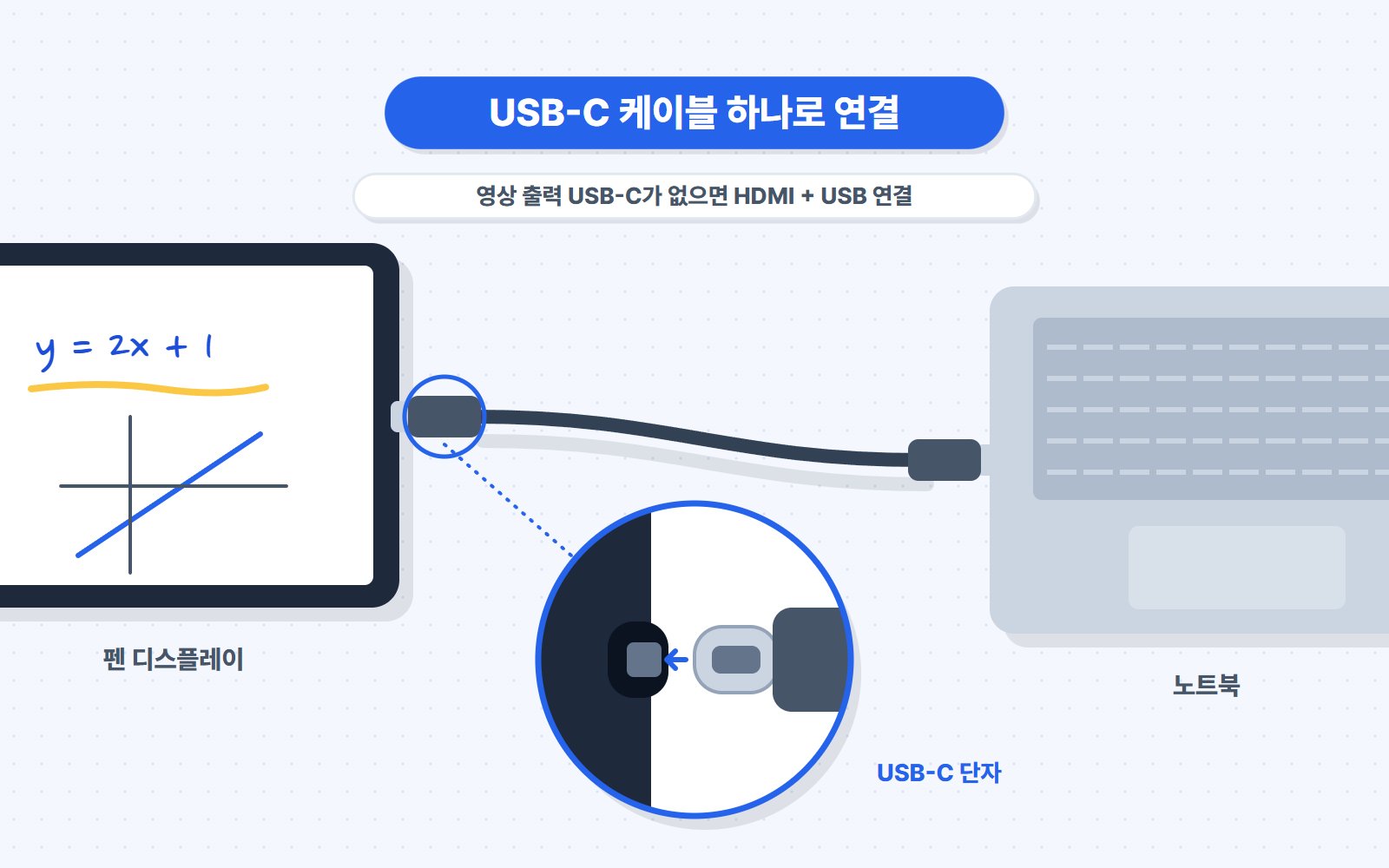
Wacom One cable connections. -
Install the Wacom driver
Download and install the driver from Wacom's official download page (wacom.com/download). Wacom Center, which you use to change pen settings, is installed along with it.
-
Select 'Extend these displays' in Windows
Right-click the desktop → Display settings → under Multiple displays, select Extend these displays. The Wacom One and the laptop need to be separate screens so you can open a different window on each.
Image coming soonwindows-display-extend.png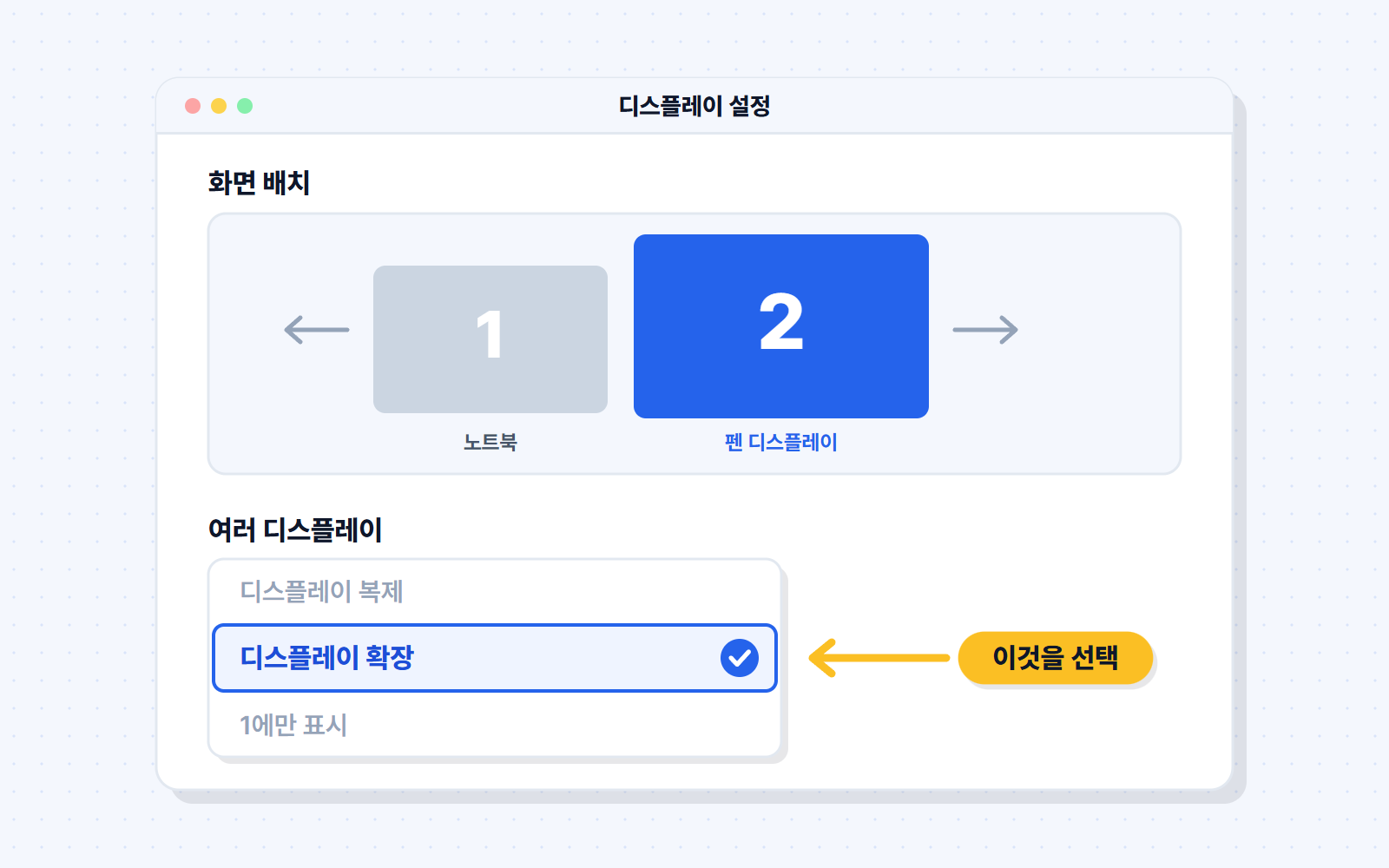
Windows display settings — 'Extend these displays'. -
Map the pen to the Wacom One screen only
Open Wacom Center, go to Mapping, choose Select one display, and pick the Wacom One screen. By default, the pen moves across all screens. This setting keeps the pen within the Wacom One screen. Menu names may differ slightly depending on the driver version.
Image coming soonwacom-pen-mapping.png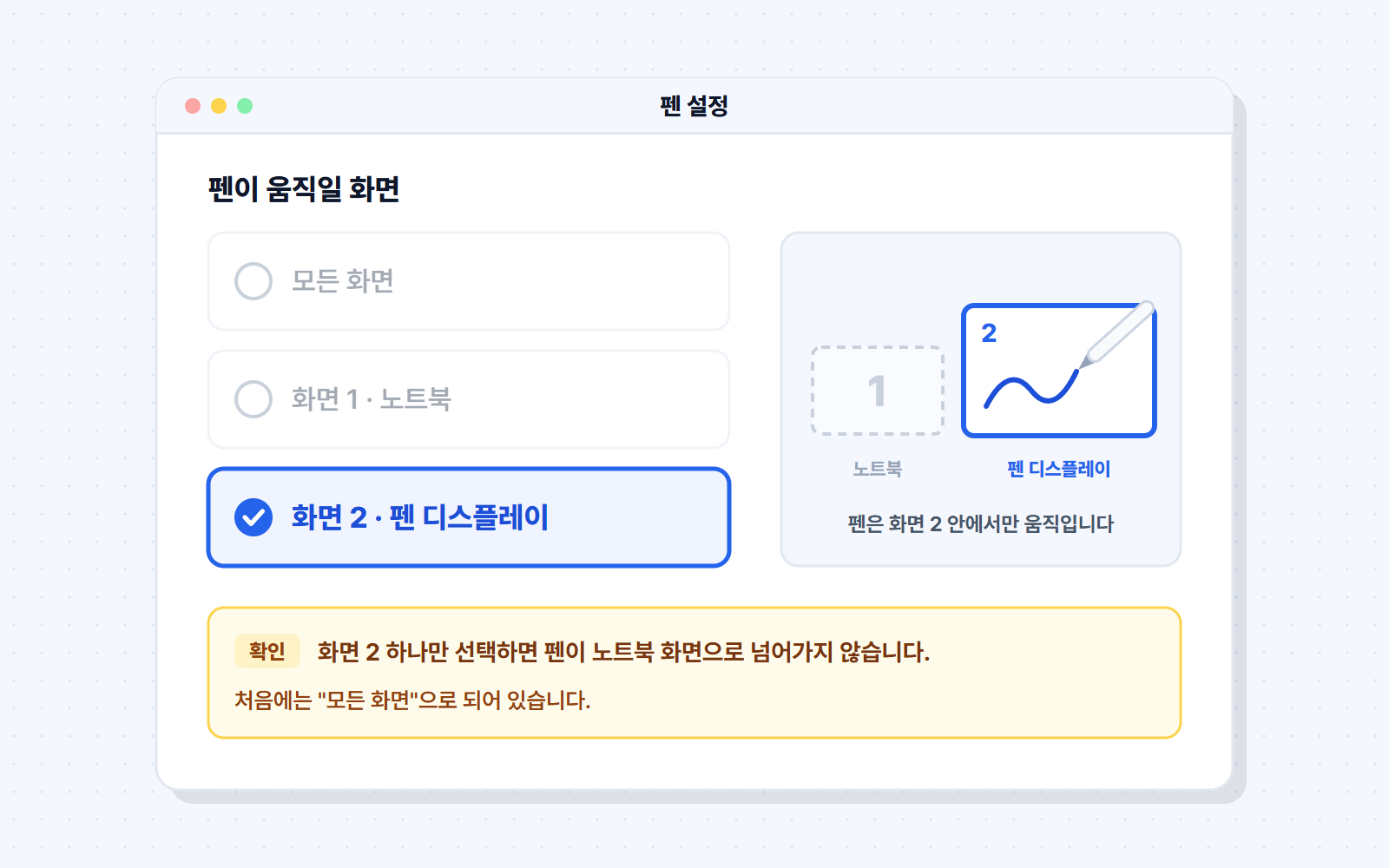
Wacom Center mapping settings — only the Wacom One screen selected. -
Place one window on each screen
Drag the ClassCanvas board window to the Wacom One screen and make it full screen, and keep the View students window on the laptop screen. You can then write on the board on the Wacom One and watch students on the laptop.


The older Wacom One 13 (DTC133) works the same way. It connects with an HDMI + USB cable.
Common problems
When I move the pen, the cursor moves on the laptop screen.
The pen is mapped to all screens. In Wacom Center, go to Mapping, choose 'Select one display', and pick the Wacom One screen. The pen will then move only within the Wacom One screen (step 4).
The Wacom One shows the same screen as my laptop.
The displays are set to 'Duplicate'. In Windows display settings, under Multiple displays, select 'Extend these displays' to open different windows on the Wacom One and the laptop (step 3).
The Wacom One screen won't turn on.
If you connected with a single USB-C cable, check that your PC's USB-C port supports video output, and try connecting the power adapter to the other USB-C port on the Wacom One. For PCs without USB-C video output, use the 3-in-1 cable to connect to the HDMI and USB-A ports (step 1).
When I write with the pen, lines appear where my palm touches the screen.
On a device where the pen has been used even once, finger drawing turns off automatically, so your palm won't draw lines. If the finger button on the toolbar is on, tap it to turn it off. Even when it's on, touches right after using the pen and wide contacts such as a palm are filtered out automatically.

One tablet with pen support is all you need
Students join class on one tablet and write their solutions on their own board. They connect through a browser without installing any program.
student-galaxy-tab.jpg

Galaxy Tab S series
Android tablets you write on with the S Pen. You can use the pen right out of the box, so setup is simple.
- Pen — The models in the comparison table below include an S Pen. Double-check the package contents with the seller.
- Pressure — With the fountain pen and brush pen, line thickness changes with how hard you press.
- Screen — Sizes range from about 10.9 to 14.6 inches. The larger the screen, the easier it is to write solutions.
- Browser — Connect with Chrome.
student-ipad.jpg

iPad
You write with an Apple Pencil. The Pencil isn't included, so you need to get one along with the iPad.
- Pen — The Apple Pencil is sold separately. Each iPad model works with a different Pencil, so check the comparison table.
- Pressure — With the fountain pen and brush pen, line thickness changes with how hard you press.
- Screen — 11-inch and 13-inch models are right for class. The iPad mini has a small screen, so we don't recommend it for class.
- Browser — Connect with Safari. Open it directly in Safari, not from an app added to the Home Screen. Apps added to the Home Screen manage microphone permission separately.
Student model comparison
First check whether a pen is included and how large the screen is.
Models currently on sale
| Model | Pen | Screen | Recommended for |
|---|---|---|---|
| Samsung Galaxy Tab S series · Connect with Chrome | |||
| Galaxy Tab S12+ | S Pen included | 12.6-inch | Students who write a lot on a large screen |
| Galaxy Tab S12 Ultra | S Pen included | 14.6-inch | When you need the largest screen. Large and heavy, so not easy to carry around |
| Galaxy Tab S11 | S Pen included | 11-inch | Standard size. Good for carrying around and writing |
| Galaxy Tab S10 Lite | S Pen included | About 10.9-inch (277.0mm) | Default choice for students getting their first device |
| Galaxy Tab S10 FE | S Pen included | 10.9-inch | Budget model. For students choosing a standard size |
| Galaxy Tab S10 FE+ | S Pen included | 13.1-inch | When you need a large screen on a budget model |
| Galaxy Tab S10+ | S Pen included | 12.4-inch | Students who write a lot on a large screen (previous generation) |
| Apple iPad · Connect with Safari · Apple Pencil sold separately for all models | |||
| iPad (A16) | Apple Pencil(USB-C) | 11-inch | Default choice for iPad |
| iPad Air 11 / 13 (M4) | Apple Pencil Pro or Apple Pencil (USB-C) | 11-inch / 13-inch | Students who write a lot on a large screen |
| iPad mini (A17 Pro) | Apple Pencil Pro or Apple Pencil (USB-C) | 8.3-inch | Screen too small; not recommended for class |
| iPad Pro 11 / 13 (M5) | Apple Pencil Pro or Apple Pencil (USB-C) | 11-inch / 13-inch | More than needed for class |
If you already have one — older models You don't need to buy a new device. If you have one of the devices below, you can join class with a pen.
| Model | Pen | Screen | Release year |
|---|---|---|---|
| Samsung Galaxy Tab S series · Connect with Chrome | |||
| Galaxy Tab S11 Ultra | S Pen included | 14.6-inch | 2025 |
| Galaxy Tab S10 Ultra | S Pen included | 14.6-inch | 2024 |
| Galaxy Tab S9 FE | S Pen included | 10.9-inch | 2023 (2024 in Korea) |
| Galaxy Tab S9 FE+ | S Pen included | 12.4-inch | 2023 (2024 in Korea) |
| Galaxy Tab S9 | S Pen included | 11-inch | 2023 |
| Galaxy Tab S9+ | S Pen included | 12.4-inch | 2023 |
| Galaxy Tab S9 Ultra | S Pen included | 14.6-inch | 2023 |
| Galaxy Tab S8 | S Pen included | 11-inch | 2022 |
| Galaxy Tab S8+ | S Pen included | 12.4-inch | 2022 |
| Galaxy Tab S8 Ultra | S Pen included | 14.6-inch | 2022 |
| Galaxy Tab S7 FE | S Pen included | 12.4-inch | 2021 · Security updates ended |
| Galaxy Tab S7 | S Pen included | 11-inch | 2020 · Security updates ended |
| Galaxy Tab S7+ | S Pen included | 12.4-inch | 2020 · Security updates ended |
| Apple iPad · Connect with Safari · Apple Pencil sold separately for all models | |||
| iPad (10th generation) | Apple Pencil (USB-C) or Apple Pencil (1st generation, USB-C adapter required) | About 10.9-inch (27.58cm) | 2022 |
| iPad (9th generation) | Apple Pencil (1st generation) | 10.2-inch | 2021 |
Security updates ended — The manufacturer no longer provides security updates for this device. You can use it if you have one, but we don't recommend buying it.
Based on official manufacturer information as of October 2026. Check package contents with the seller.
Pre-purchase checklist
Pen support
Check that the model supports a dedicated pen (Wacom pen, S Pen, Apple Pencil), and whether the pen is included or sold separately.
Screen size
For students, we recommend about 11 inches or larger. A small screen leaves too little room to write solutions.
Browser
Use Chrome on Galaxy Tab and Safari on iPad. Keep your browser up to date.
Internet connection
Video and handwriting are exchanged in real time, so you need a stable Wi-Fi or wired internet connection. We recommend a wired connection for the teacher's PC.
Not sure which device to choose? Contact us. Main phone 1661-9155 (Korean only) · Email classcanvas.live@gmail.com
If your devices are ready,
try it yourself with a free trial
You can try live classes right away with a free trial. Start by checking how board writing works on the devices you already have.