How can you apply flipped classes in an online academy?
Many directors and teachers feel that when class time is spent only on explaining concepts, there isn't enough time left for problem solving or discussion. This problem is even more noticeable in online remote academies, where students' attention spans are short. One way to solve this is the flipped class, also known as flipped learning.
In a flipped class, students watch a video explaining the concepts at home beforehand, and the actual class time focuses on interactive activities such as problem solving and discussion. In some ways, it is actually easier to apply in an online academy than in an offline one, because a live video class environment is already in place and distributing video content is a familiar process. Below, we walk through how to apply flipped classes step by step in an online remote academy.
4 steps to apply flipped classes
Step 1. Prepare concept videos
First, create short videos covering the key concepts for the class. Keeping each video to around 10 minutes and including only the essentials works best. If a video is too long, students are likely not to watch it to the end.
Condense each unit into 1–2 key concepts
Keep worked examples brief and cover advanced problems in the live class
With the video lecture feature of the ClassCanvas learning management system, you can handle video uploads and per-student viewing management in one place
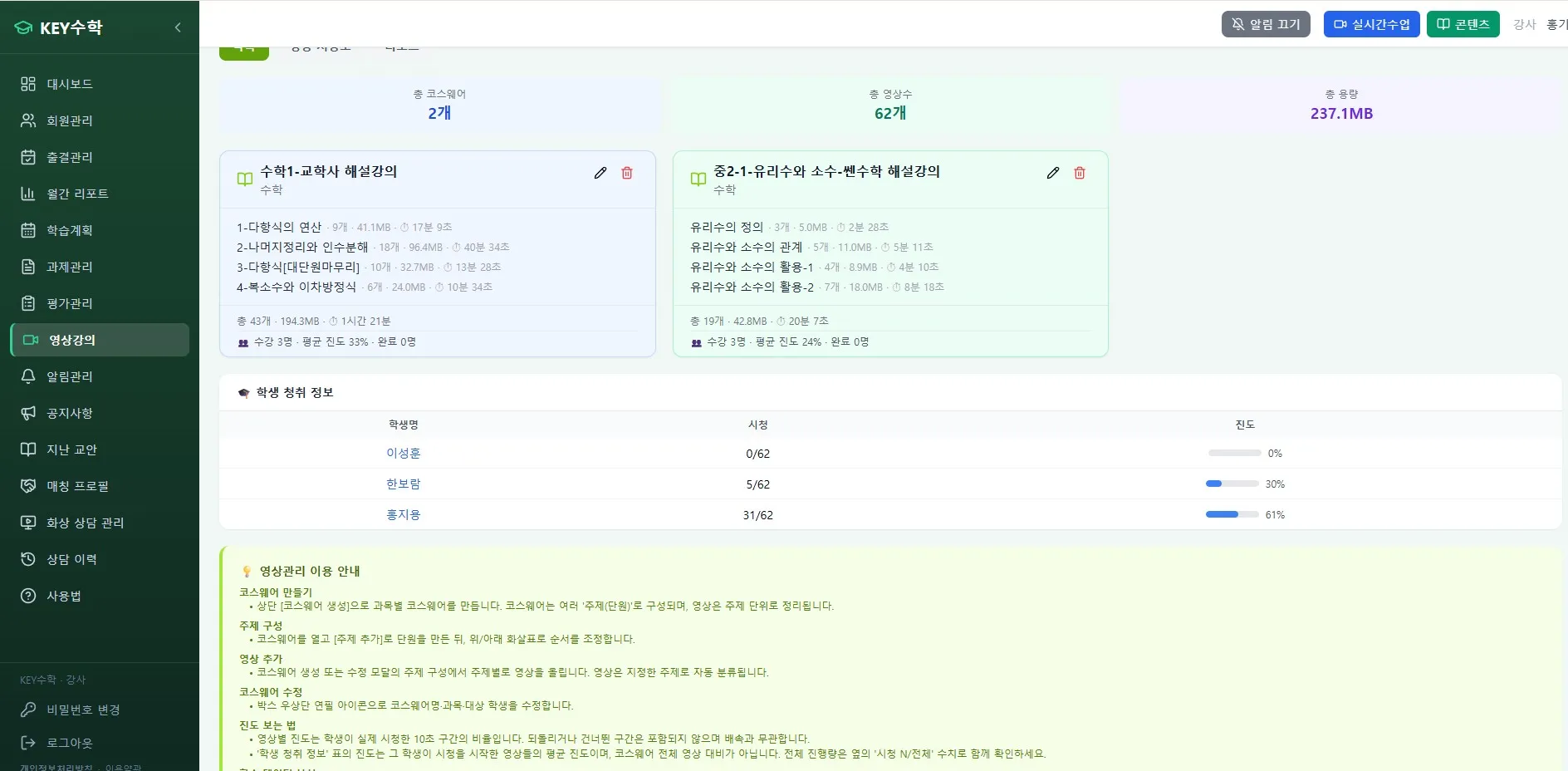
Step 2. Check pre-class viewing
Uploading the video isn't the end. You need a way to confirm that students actually watched it. If you skip this step, the whole premise of the flipped class falls apart.
Check whether students watched and how long they watched using data
Attach a short check quiz after the video to gauge understanding
In the ClassCanvas learning management system, you can manage viewing records like assignments, linked with attendance management
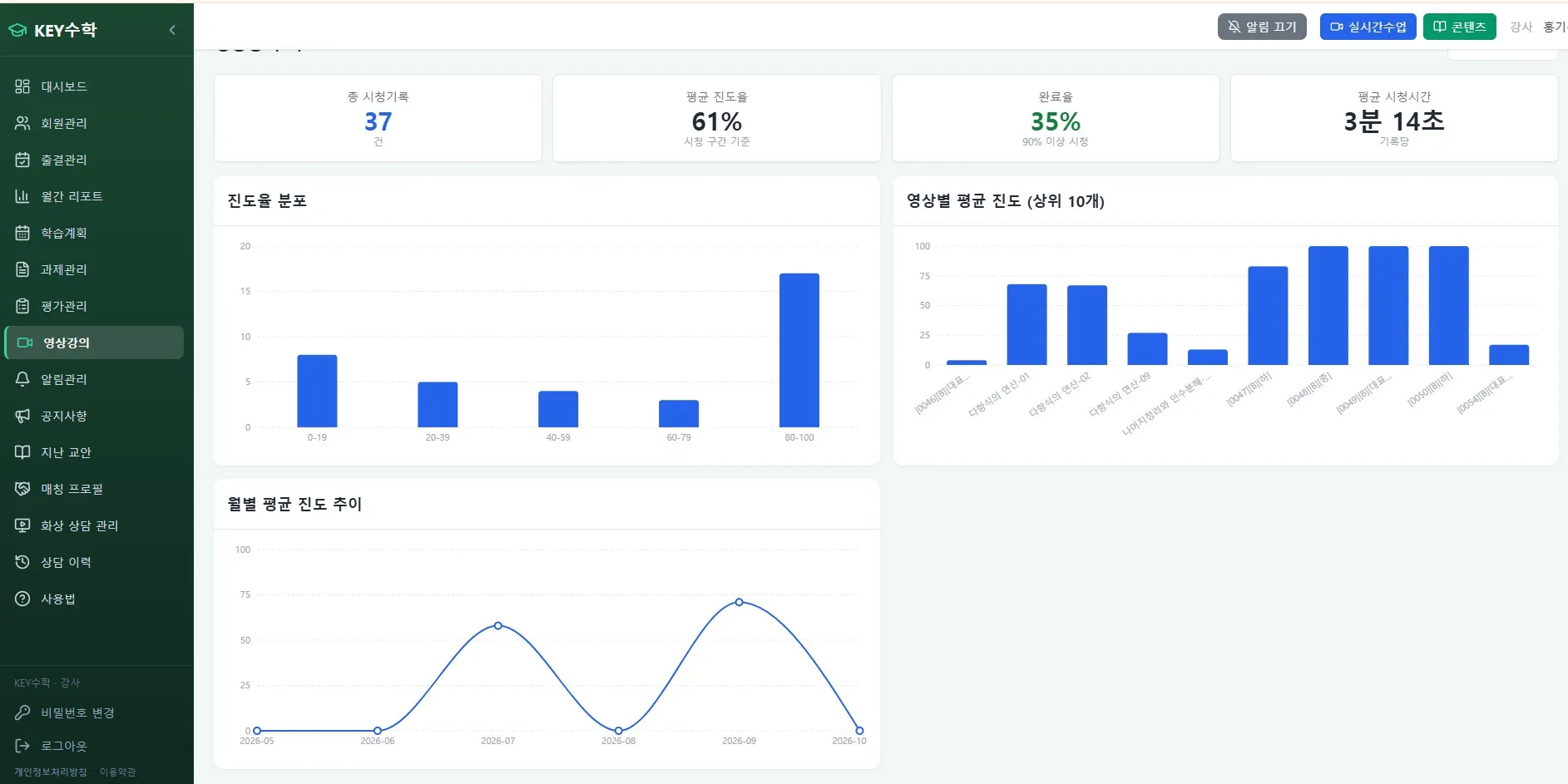
Step 3. Design live class activities
On the premise that students have finished watching the video, the live class skips concept review and goes straight into application problems and discussion. In an online remote academy, however, it is hard to see how engaged each student is, so you need a tool to make up for that.
Set up small-group discussions or pair activities
Correct misconceptions through live Q&A
With the one-board-per-student feature of the ClassCanvas live class program, you can see every student writing out their solution process at the same time
With Individual mode, you can also assign extra problems matched to each student's level
Step 4. Link to assignments
After class, it's a good idea to give an assignment that summarizes what was covered that day. Design assignments so they lead naturally into the next video.
Review assignment on the day's lesson
Preview video announcement for the next session
Manage submissions and feedback on a single screen with the assignment feature of the ClassCanvas learning management system
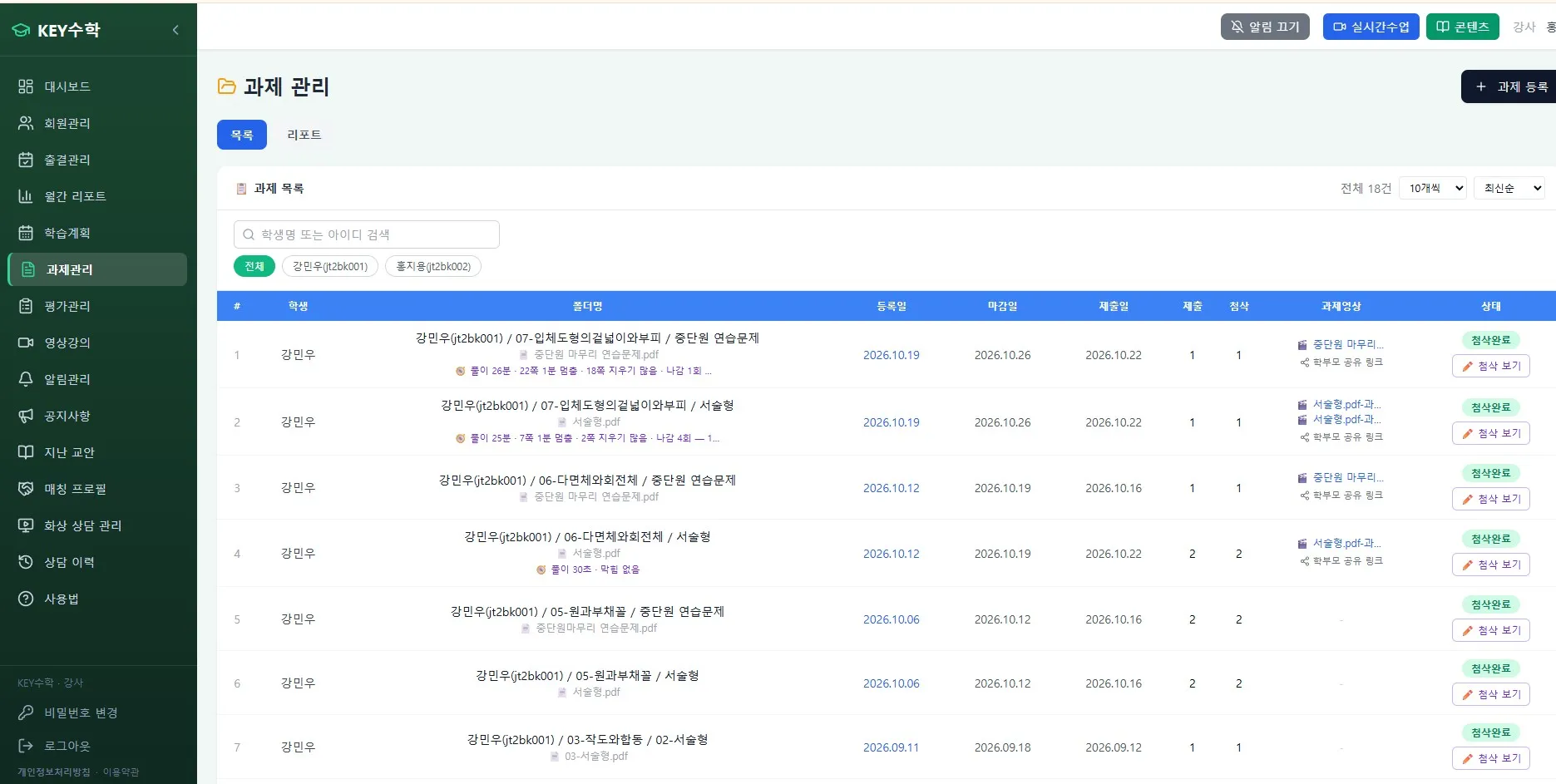
What should you do about students who join without watching the video?
When you run flipped classes, there will always be students who join without having watched the video. If you then turn the whole class back into concept explanation, the point of the flipped class is lost.
Naturally check who has watched with a short quiz before class starts
For students who haven't watched, provide a short summary of the video separately using Individual mode in the ClassCanvas live class program
The other students go ahead with application problems and discussion as planned
After class, check the understanding of students who didn't watch separately through one-on-one feedback
This way, you can look after individual students without disrupting the progress of the whole class.
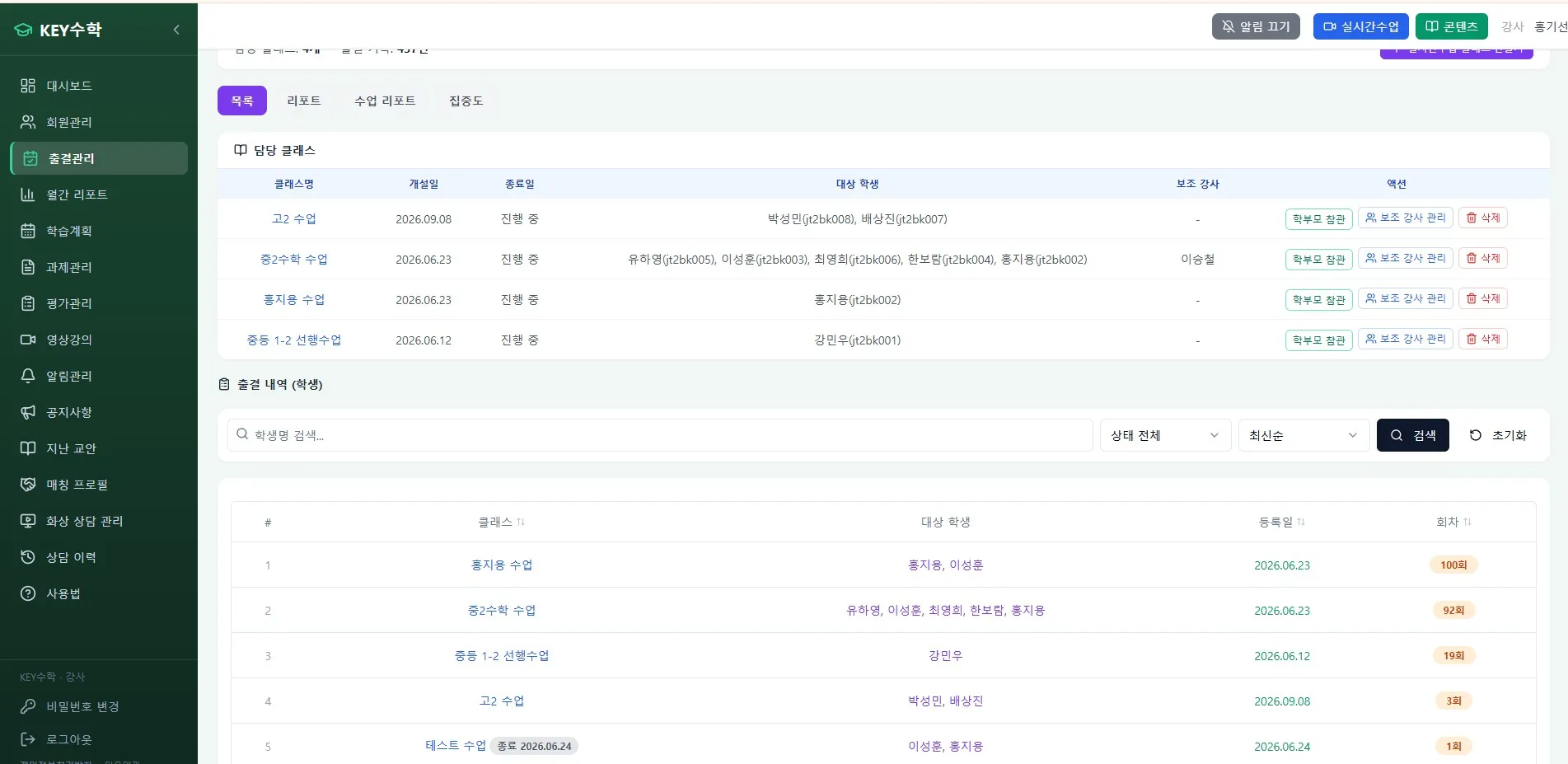
Things to consider when starting and running an online academy
The flipped class is more than just a teaching method; it also ties into your online academy's operating strategy. If you are preparing to start an academy or an online business, it is efficient to design video content and live classes separately from the start. For subjects with distinct characteristics, such as English or math video tutoring, you may also need to adjust the length of the concept videos and the share of live activities.
For remote academies aimed at adults, learners tend to be more self-directed, so flipped classes are relatively easy to apply, but remote academies for elementary, middle and high school students need a more careful pre-class viewing check. Deciding on your teaching method in advance, even while you are still preparing remote tutoring academy registration or setting up a remote academy, makes curriculum design and system selection much easier.
Wrapping up: start with what you can do now
Applying flipped classes in an online remote academy is not a grand transformation; it is closer to changing the order in which you design your lessons. You can start by checking the four steps one by one: preparing videos, checking pre-class viewing, designing live activities and linking assignments. Rather than treating it as a distant trend, we recommend starting by trying it out on one unit next week.
If you are thinking about running an online remote academy, it is worth looking at the ClassCanvas learning management system and live class program together. Check the features you need for flipped classes one by one, from video lectures, assignments and attendance management to one board per student and one-on-one feedback.
Remote academy setup procedure
ClassCanvas learning management
Inquiries: 1661-9155 (Korean only)
ClassCanvas, the total solution for online remote academies