Teaching on Zoom, you've probably had these worries at least once
If you're a director or teacher at an online academy, you've probably had thoughts like these at least once: "Teaching on Zoom feels frustrating," "I can't tell if students are getting distracted," "To give individual feedback, I have to keep switching screen shares, and it's a hassle."
The truth is, Zoom was originally built for meetings. It's excellent for seeing faces, talking, and sharing a single screen to give a presentation. But classes at a remote academy have completely different needs from meetings. You have to understand each student's learning status, check their notes, and give feedback. Forcing all of that into a meeting program creates a number of limits.
Today, let's talk casually about why online and remote academies need a program built for classes, and how ClassCanvas is different.
Zoom for meetings vs ClassCanvas for classes: what's the difference?
First, let's compare them side by side in a table.
Category Zoom (for meetings) ClassCanvas (for classes) Main purpose Multi-party video meetings Real-time classes for remote academies Checking student notes Requires screen sharing; hard to check individuals A personal board is created automatically for each student Individual feedback Requires running a separate program alongside Feedback directly on the board Presentation classes Adjusting the screen-share order is cumbersome Present instantly by selecting and sharing a specific student's board Learning data integration None Integrated with the learning management system Attendance and assignment management Needs separate management Managed in one integrated system
The differences feel clearer in a table, don't they? Zoom is optimized for 'gathering and talking,' while ClassCanvas is optimized for 'teaching and learning.' Thinking of it that way makes it easy to understand.
A 'board of their own' for every student
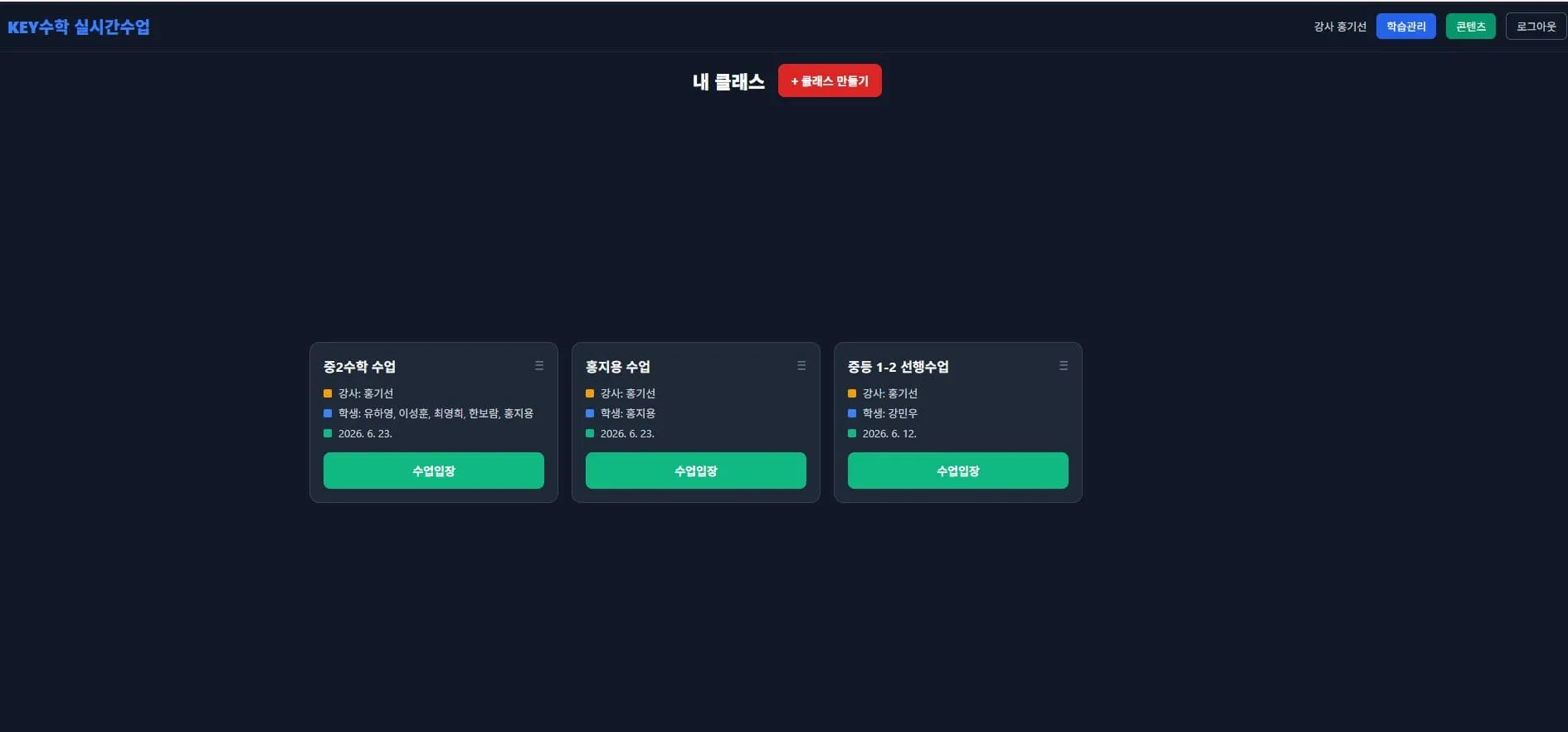
The biggest feature of ClassCanvas is that the moment a student joins a class, a board of their own is created automatically. Think of it as a personal notebook. On this board, students take notes and solve problems, and the teacher can watch it all in real time.
This feature is especially useful in classes where individual feedback matters, such as English or math video tutoring. Instead of turning screen sharing off and on to check students one by one like in Zoom, the teacher can jump straight to the board of any student and add feedback.
Whole-class, individual, feedback, and presentation
Classes at a remote academy keep changing depending on the situation. Sometimes you need to show the same content to every student (whole-class), sometimes you need students to study individually at different paces (individual), and sometimes you need to run a presentation class where everyone looks at one student's answer together.
ClassCanvas is designed so you can switch freely between these modes within a single screen.
Whole-class mode - Show the same screen to all students
Individual mode - Each student works at a different pace on different problems
Feedback mode - Guide a student by writing directly on their board
Presentation mode - Share a selected student's board with everyone for a presentation
Because it runs on multiple boards like this, class flows that are hard to achieve with Zoom alone come about naturally.
Learning management included, with nothing to manage separately
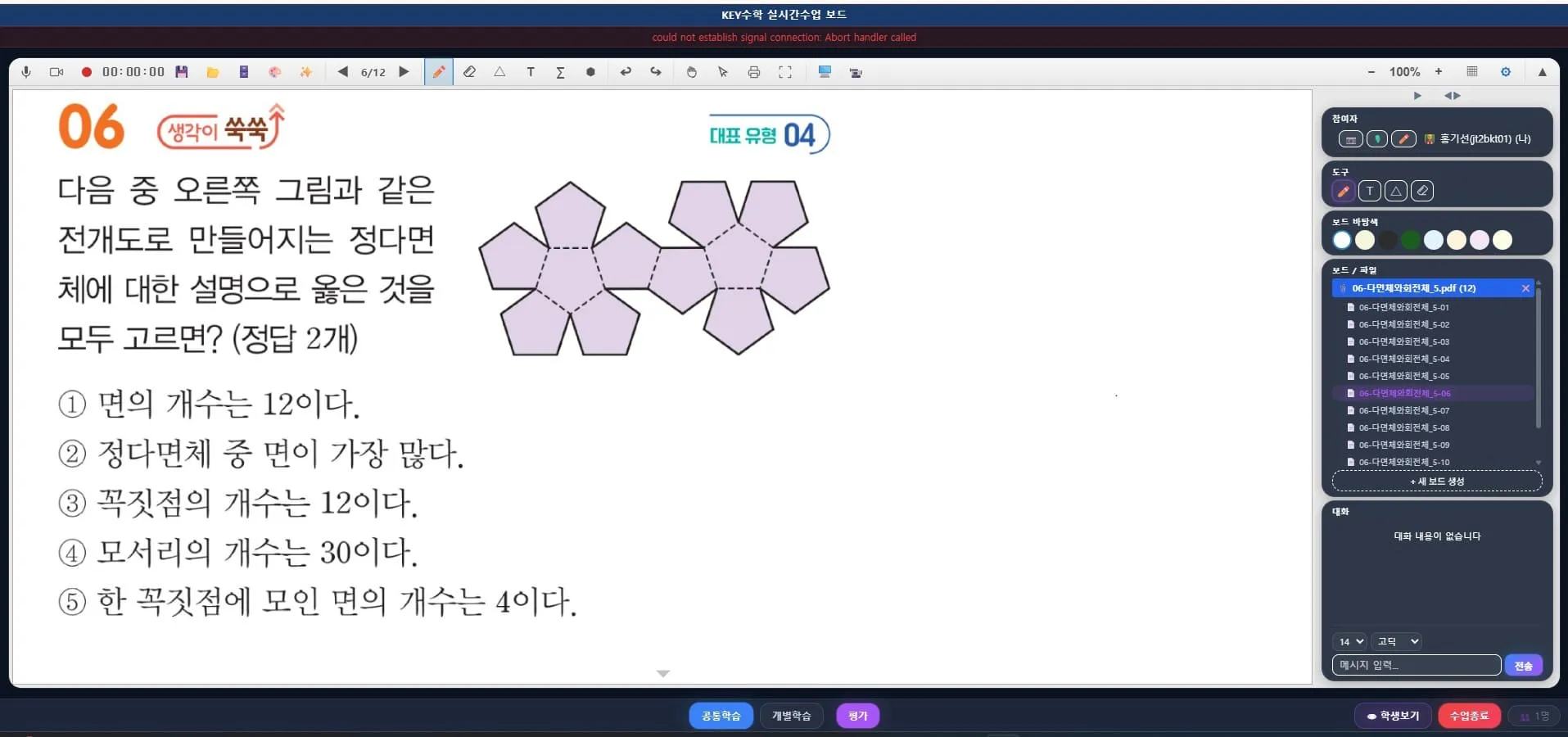
Running an online academy isn't just about classes going well. You also need to keep track of attendance, whether assignments were submitted, and test results. Academies that teach on Zoom often use Excel or a separate program alongside it for this kind of management.
In ClassCanvas, the live class program and the learning management system are linked from the start. So a student's participation status and board records during class flow naturally into learning management data.
Check video lecture viewing history
Manage assignment submissions and feedback history
Accumulated test result records
Real-time attendance status
For teachers, it's much easier because they don't have to handle classes and management separately. For directors, you can see each student's learning data at a glance, so you can talk with evidence during consultations.
Even more necessary for remote academies for adults
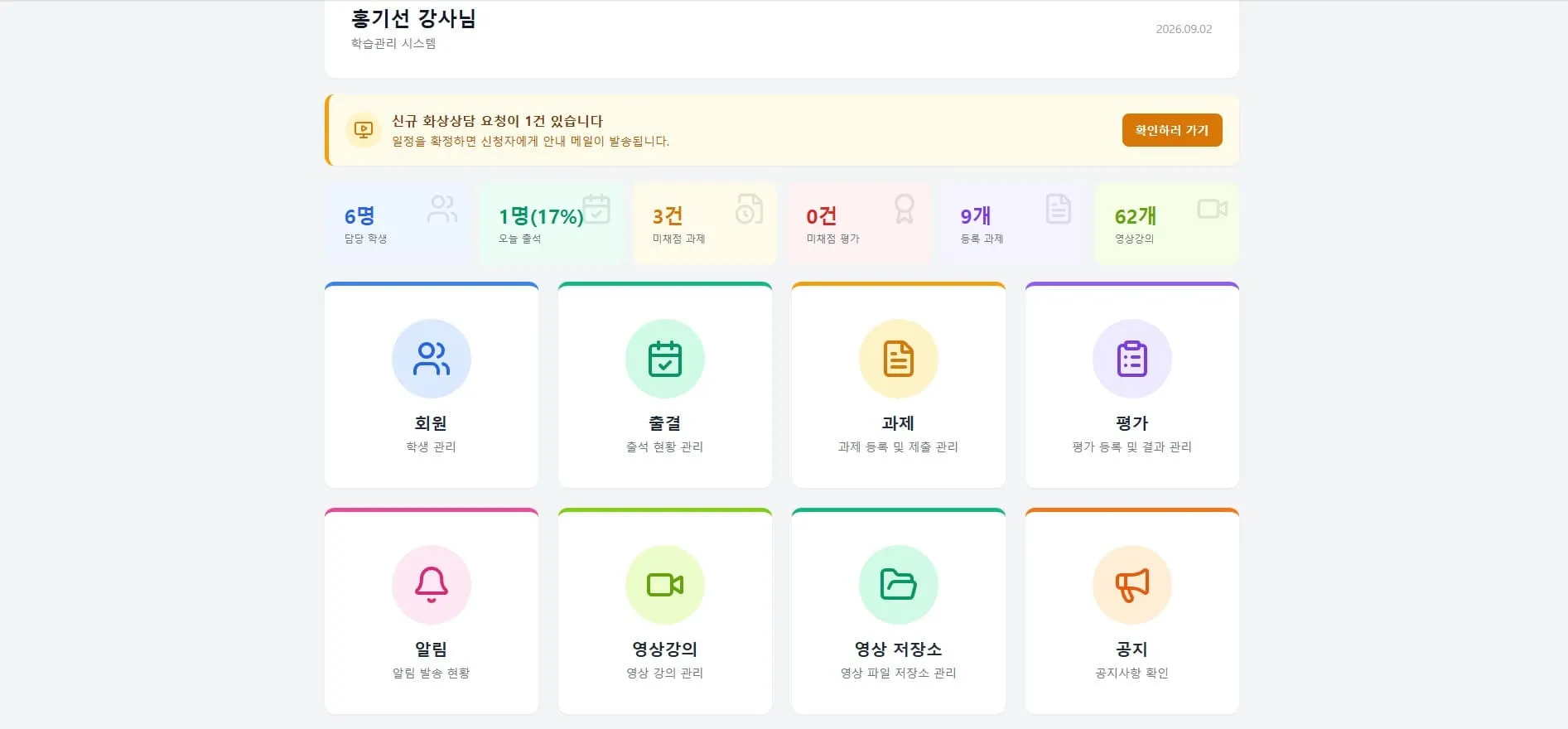
For remote academies for adults, managing students' learning consistency is especially important, and meeting tools make that kind of detailed management difficult. Each person's pace is different, and the feedback points each one needs are different, so this is also where the multi-board structure really shines.
Also, if you're preparing to set up an online academy or register a remote tutoring academy, it's a good idea to think ahead about which video class software you'll use for actual classes, alongside preparing documents such as the domain registration certificate and the remote academy server lease agreement. If you choose the wrong class tool early in setting up a remote tutoring academy, it can be a hassle to switch systems later.
Summary
Zoom is a tool for meetings, and ClassCanvas is a tool for classes. Both connect people by video, but the detailed features needed to run online and remote academies are clearly different.
If you consider student boards, switching between whole-class, individual, feedback, and presentation modes, and integration with the learning management system, using a program designed specifically for classes will help in many ways. If the way you teach now has felt frustrating, it's worth taking a look at how ClassCanvas works differently.
Steps to set up a remote academy
Inquiries: 1661-9155 (Korean only)
ClassCanvas, the total solution for online and remote academies