Is managing your remote academy getting difficult?
Running an online academy or a remote tutoring academy brings challenges that differ from in-person classes. Because students aren't right in front of you, attendance management becomes vague, and assignment management easily stops at checking whether work was submitted. For teachers, there is also the hassle of compiling each class's learning status in Excel one by one, or building separate materials to report to the academy administrator.
To address these concerns, a report feature has been added to the ClassCanvas learning management system. With statistics and graphs added to four menus (assignments, tests, video lectures, and attendance management), running a remote academy has become considerably easier.
What has changed
Previously, each menu only showed information as a list. Now there is a 'List | Report' tab at the top of each menu, and clicking the Report tab shows the current status organized into numbers and graphs right away.
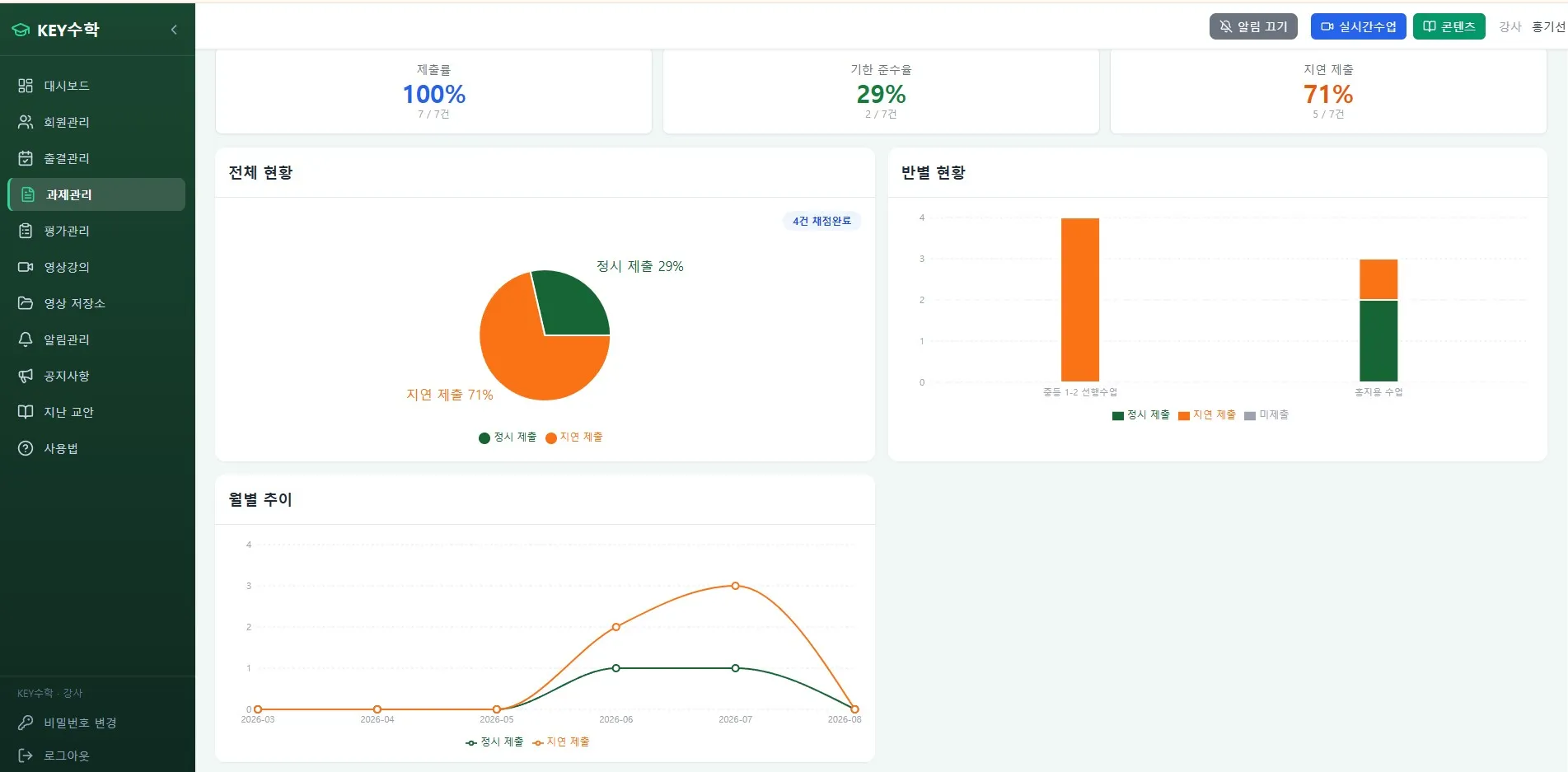
Assignment management report
See submission rate and on-time rate at a glance
Compare submission status by class
Monthly submission trend graph
The most frustrating part of assignment management was that you could tell 'who submitted' but found it hard to see 'how late and how often' students submit. With the report feature, you can view class comparisons and trends together, making it easier to judge which students and which classes need more attention.
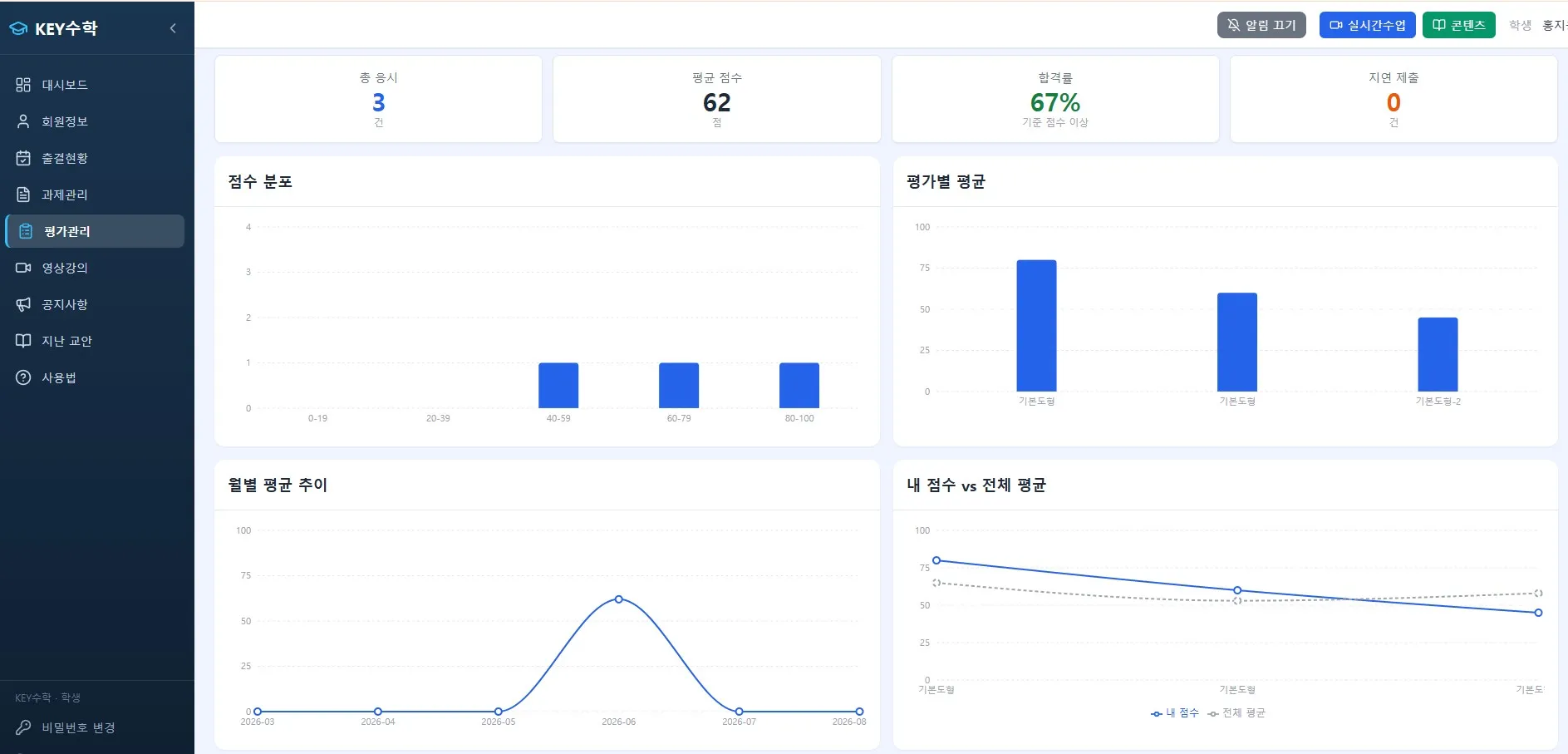
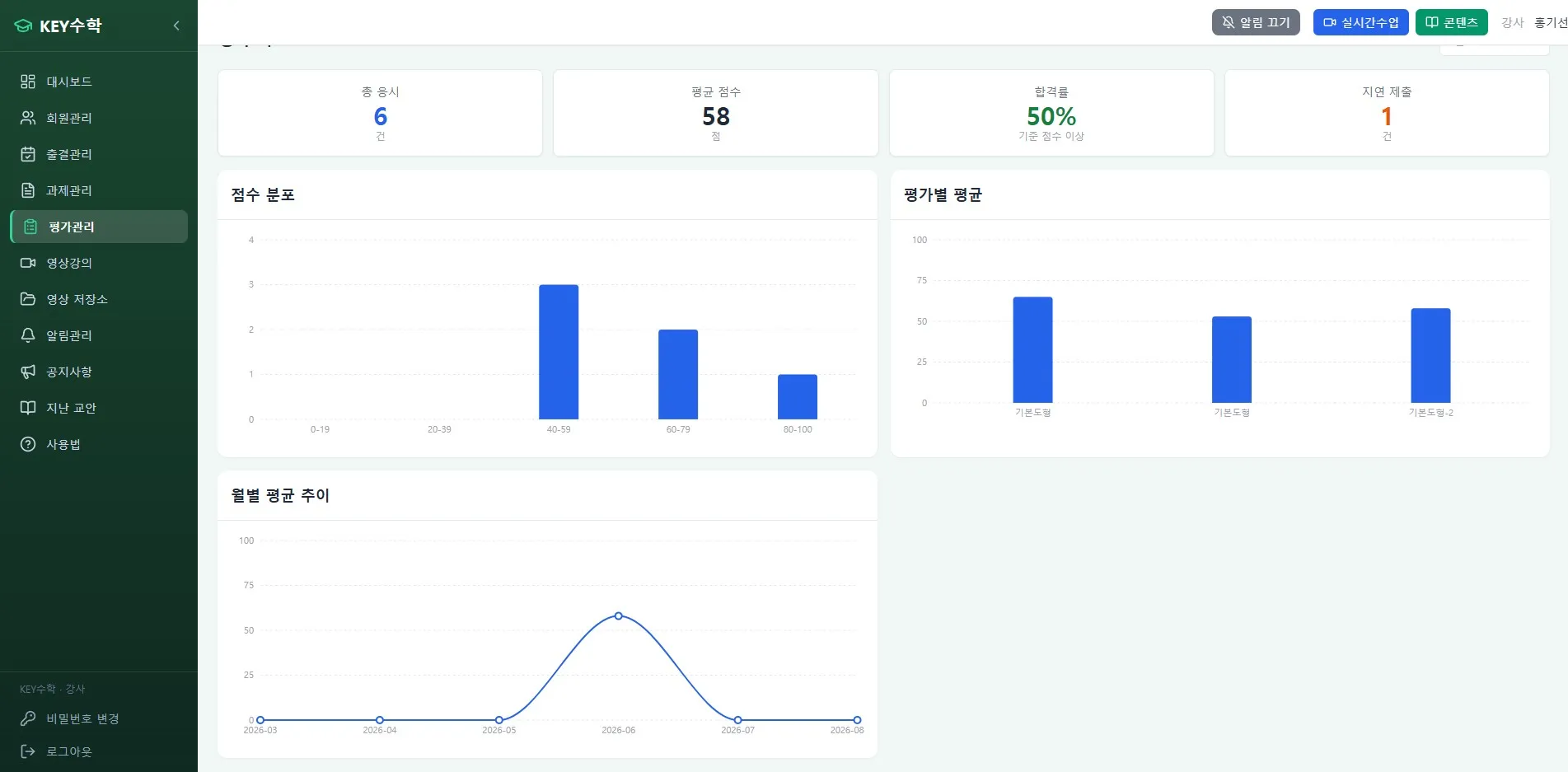
Test management report
Average score, pass rate, and late submission status
Score distribution and average score per test
Monthly average trend
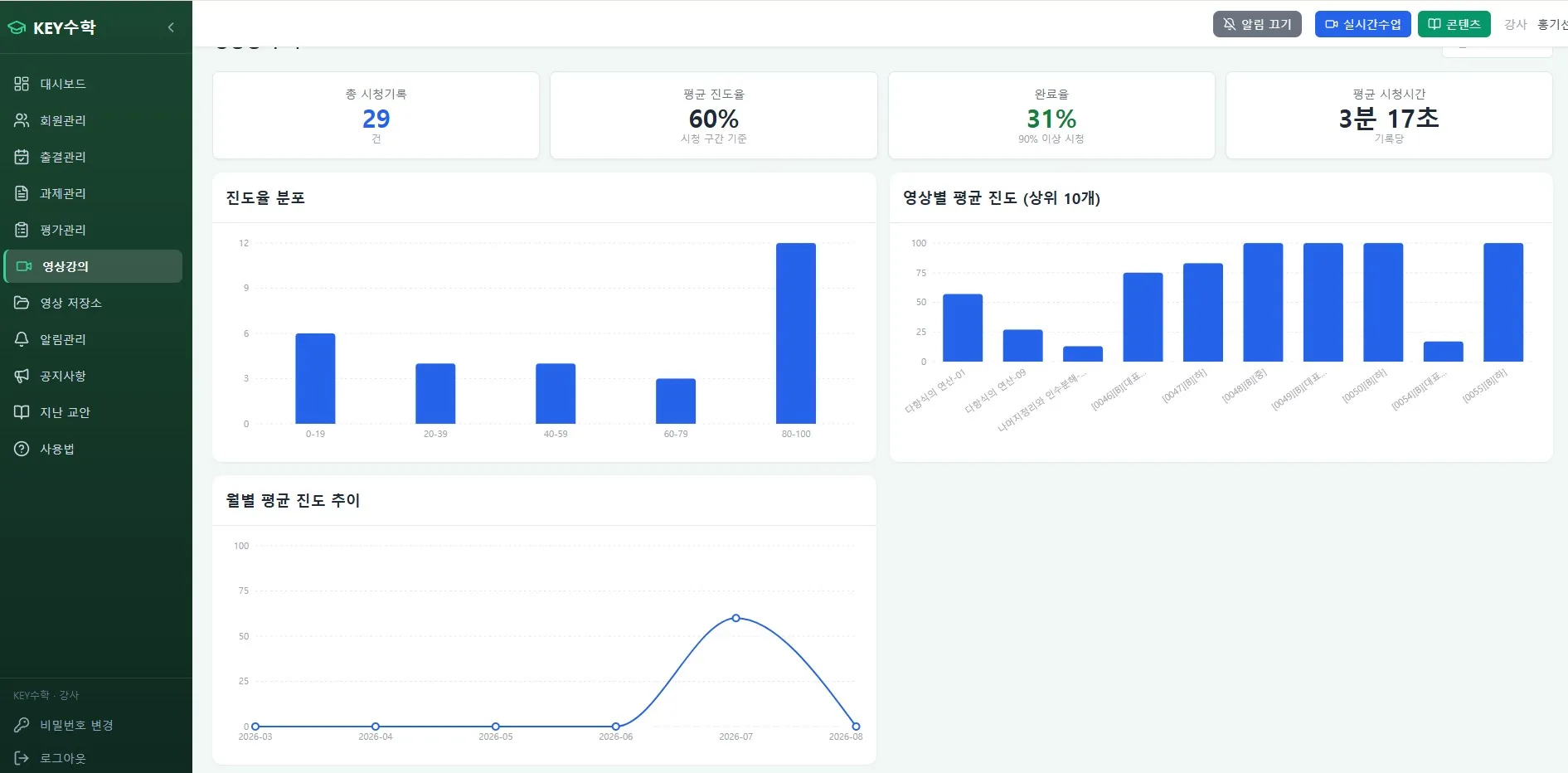
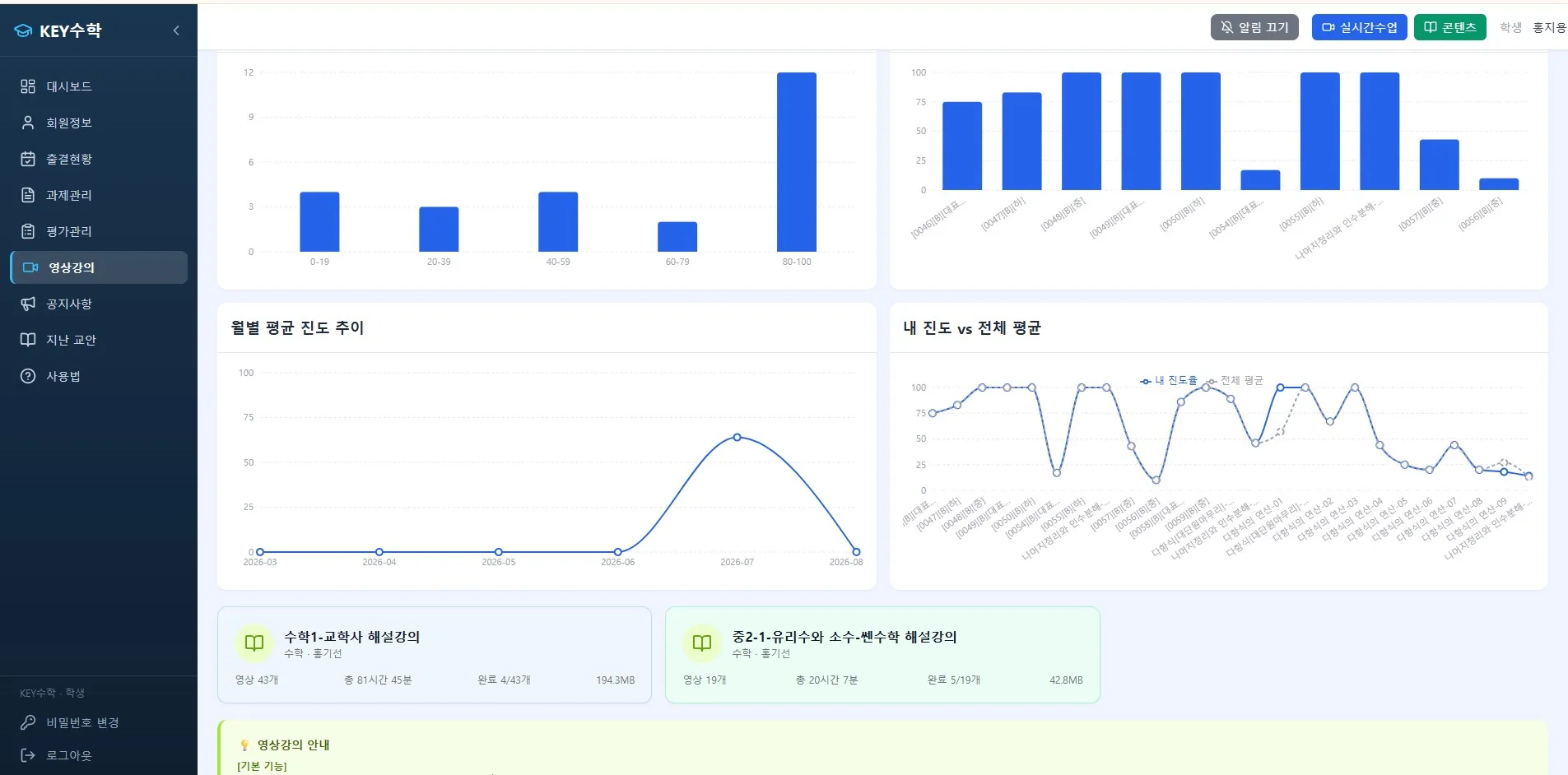
Video lecture report
Average progress rate, completion rate, and average viewing time
Progress rate distribution and average progress per video
Monthly viewing trend
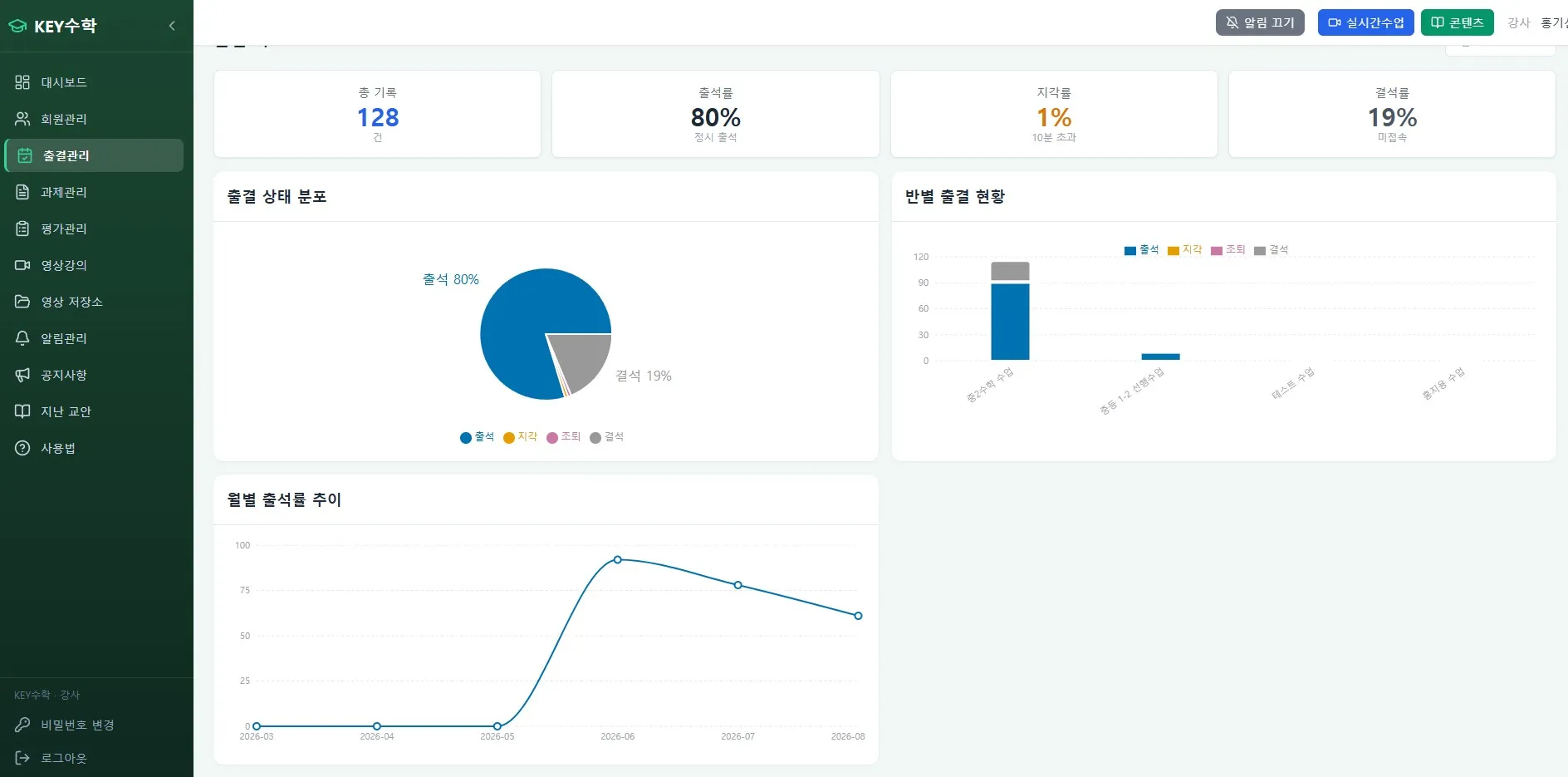
Attendance management report
Attendance rate, late rate, and absence rate
Distribution of present, late, early leave, and absent statuses
Attendance status by class and monthly attendance rate trend
Attendance management is an especially sensitive part of running a remote academy. Parents ask about it often, and depending on academy registration requirements, you may need to compile attendance data regularly. With the report, you can see attendance status by class and monthly trends in graphs right away, so you can pull up the data whenever you need it without any separate compiling work.
What you see depends on who is using it
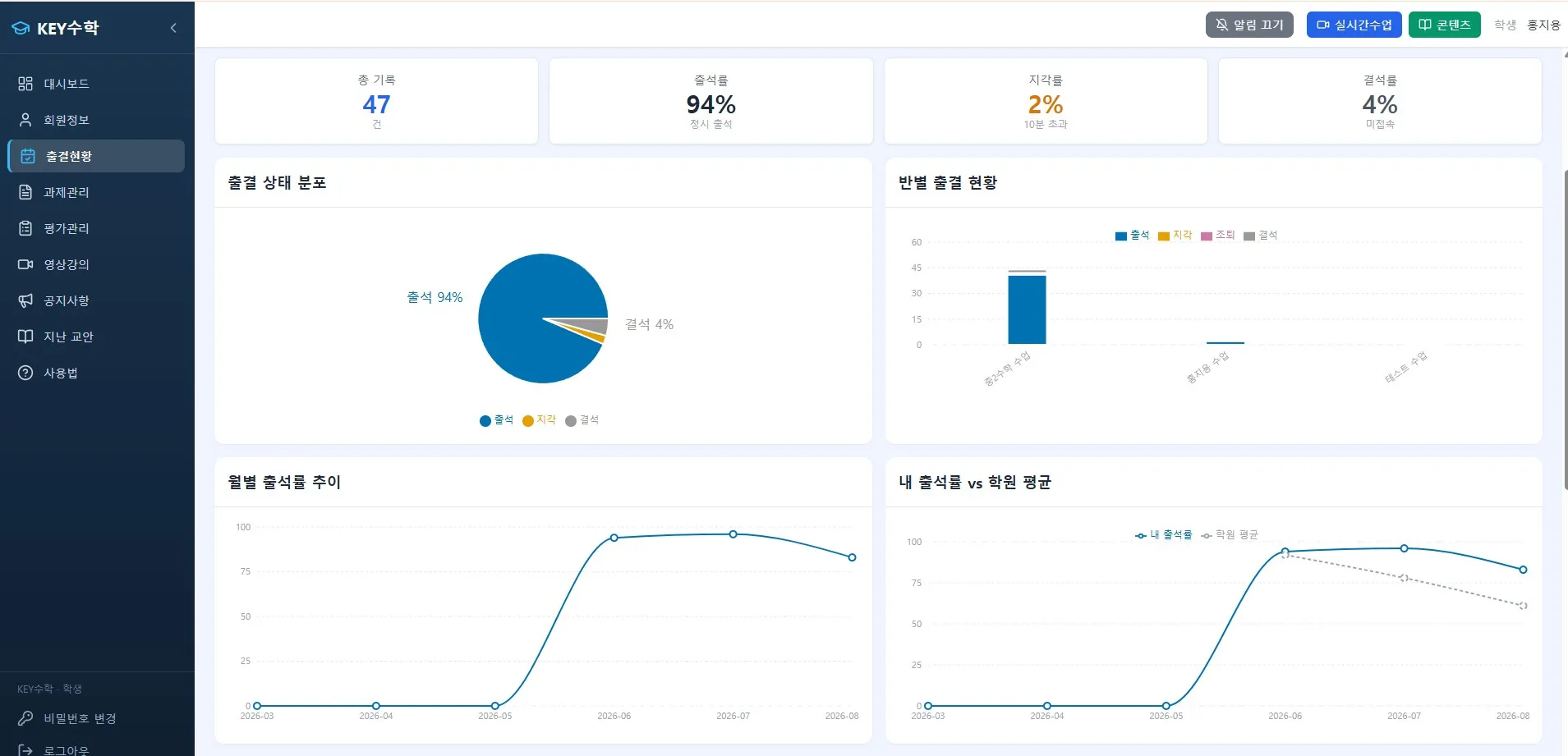
Even for the same report feature, the range of information available is designed to differ depending on the user.
Academy administrator: Can view statistics for the entire academy, and comparison graphs by teacher are also provided.
Teacher: Can view statistics only for the classes they are in charge of, so they can focus on managing those classes.
Students and parents: Can view their own learning status, and for tests, video lectures, and attendance, graphs are also provided to compare with the academy average and see where they stand.
Because information is separated by audience in this way, administrators can grasp overall operations, teachers can focus on their own classes, and students and parents can check individual learning status, so everyone sees only the information they need.
Being able to export reports as PDF is also practical
Academy administrators and teachers can export the reports they view as PDF. When using them as material for parent consultations or compiling remote academy operation reports, you can save the effort of capturing screenshots or reworking data in Excel. Even if you run separate classes by subject, such as English video tutoring or math video tutoring, you can export a report for each class and use them for comparison.
Check your remote academy operations like this
Here is a checklist you can refer to when using the report feature while running an online academy.
Use the assignment management report to check whether any class has a large gap in submission rate
Look at the score distribution in the test management report to identify students who need extra help
Check whether students with low video lecture progress need separate guidance
Use the attendance management report to see whether there is a point where the monthly attendance rate trend starts to decline
Administrators can review differences in class operation using the comparison graphs by teacher
Wrapping up
Running a remote academy or online academy depends more heavily than an in-person academy on understanding students' status through data. The report feature in the ClassCanvas learning management system presents the status of assignments, tests, video lectures, and attendance management in graphs, so you can check them right when you need to, without any separate compiling work, and save them as PDF. If you are a teacher at a remote academy, we suggest starting by taking a look at the Report tab for the classes you teach.
How to set up a remote academy
Phone inquiries: 1661-9155 (Korean only)
ClassCanvas: the total solution for online remote academies