Why self-directed learning is hard to manage at a remote academy
When you run an online academy, unlike in in-person classes, it is hard to see with your own eyes whether students are studying as planned. This is especially true for academies run as remote academies: teachers can't sit next to students to look after their study habits, and figuring out how to share learning progress with parents is a recurring concern.
Self-directed learning only takes root when the cycle of plan, action and review is repeated, but if teachers track this by hand, it takes a lot of time and things are easily missed. To solve this, ClassCanvas built a study plan feature into its learning management system. When a teacher creates a plan with a student, attendance, assignment and video-viewing data are reflected automatically, daily, weekly and monthly reports are generated, and you can easily share these reports with parents.
How the ClassCanvas learning management system works
If you are a teacher or academy director running a remote academy, it helps to understand the ClassCanvas learning management flow step by step. The whole process runs from assigning students to sharing reports with parents.
Step 1: Assign students first
For a student to appear in the Plan management tab, they must first be assigned in the Assignment management tab. A student with no teacher in charge can be linked right away with the assign button, but a student who already has another teacher can only be given a reassignment request. In that case, admin approval is needed for the student to be transferred, and you can check the status of the request as pending, approved or rejected in the reassignment request list. In a setup like a remote academy where several teachers work together, this assignment procedure is especially important.
Step 2: Create a plan and add items
In the Plan management tab, select a student, click New plan, and set a title and period. You can also create several plans per month for one student. After creating a plan, you need to register daily to-dos by adding items. Without items, no completion rate can be calculated, so be sure not to skip this step.
Step 3: Know how each item is marked complete
The way items are marked complete differs by item type.
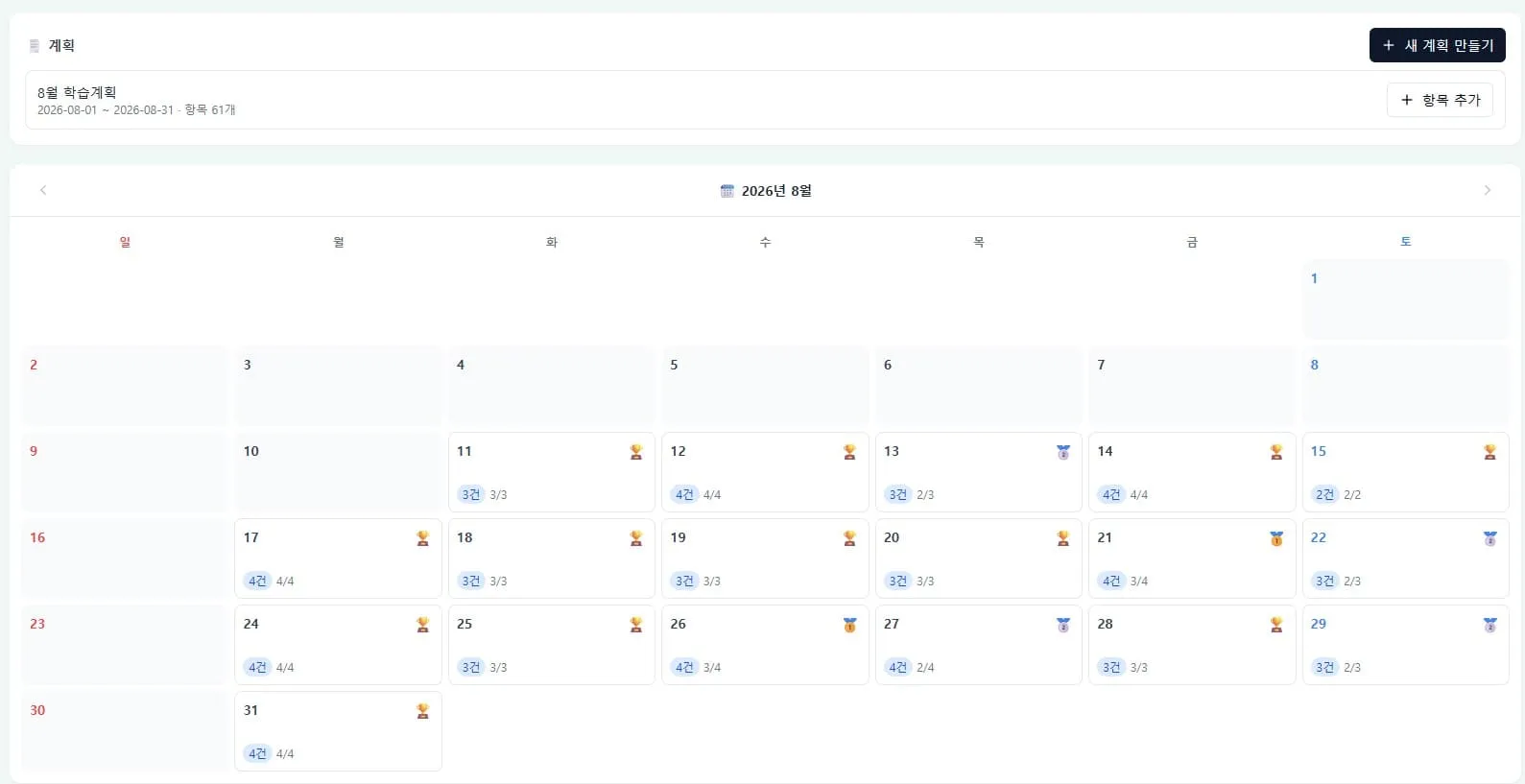
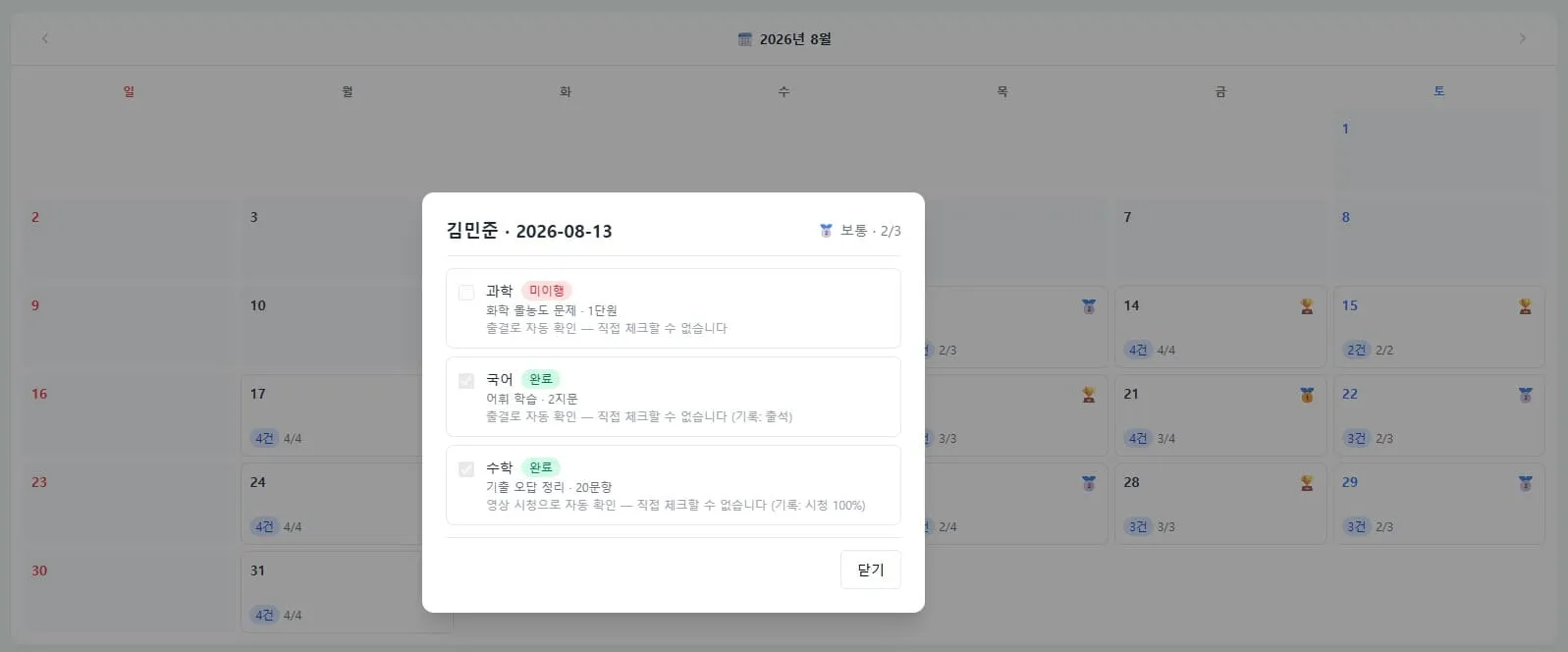
Attendance, assignment and video items: They are marked complete automatically every day based on actual records, so teachers don't need to check them separately.
Manual check items: The teacher checks them manually by clicking the date in the calendar.
Thanks to this automation, you can reduce the burden on teachers of checking everything by hand, even while running an online academy.
Step 4: Check the completion rate and grade
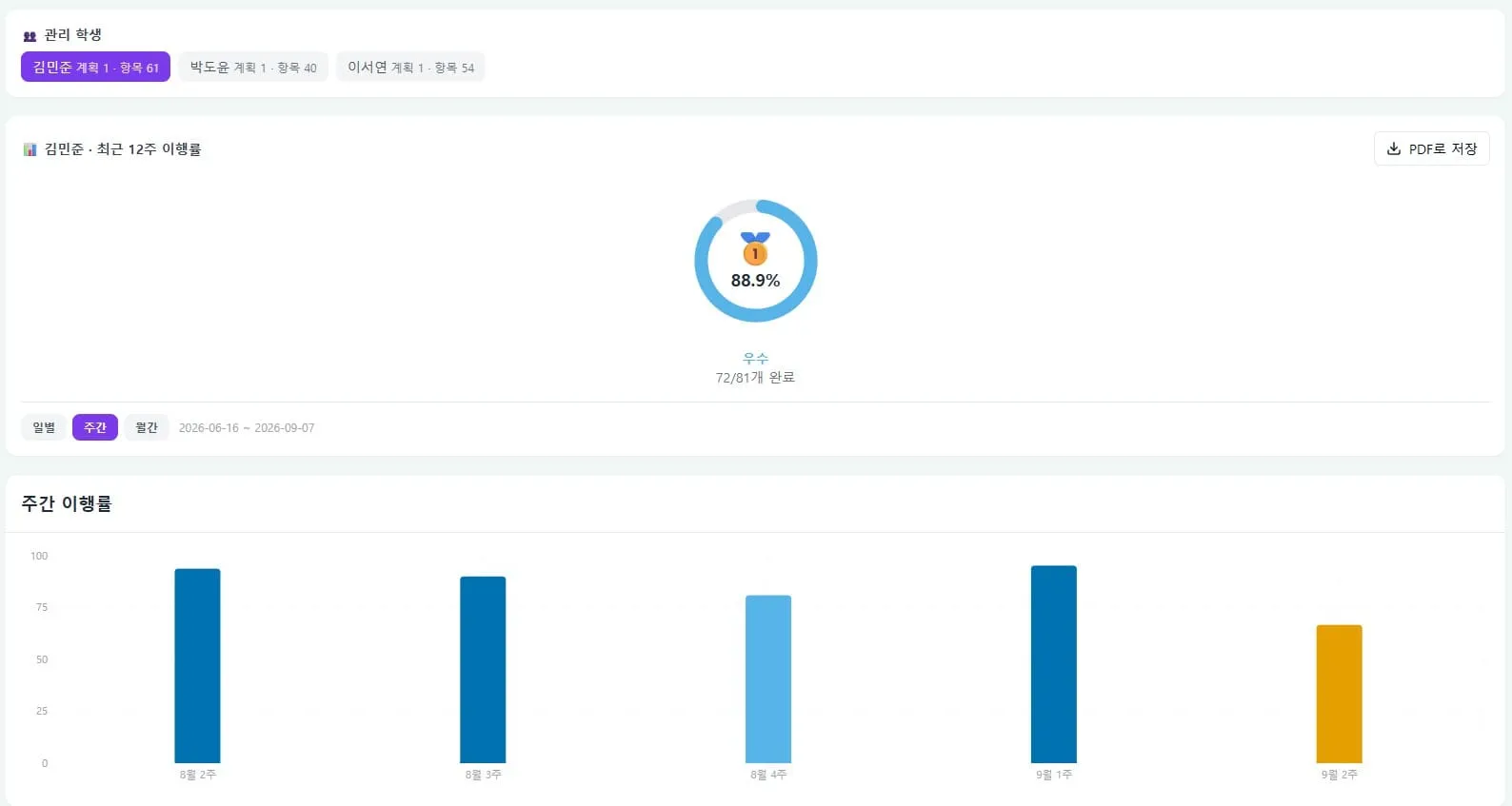
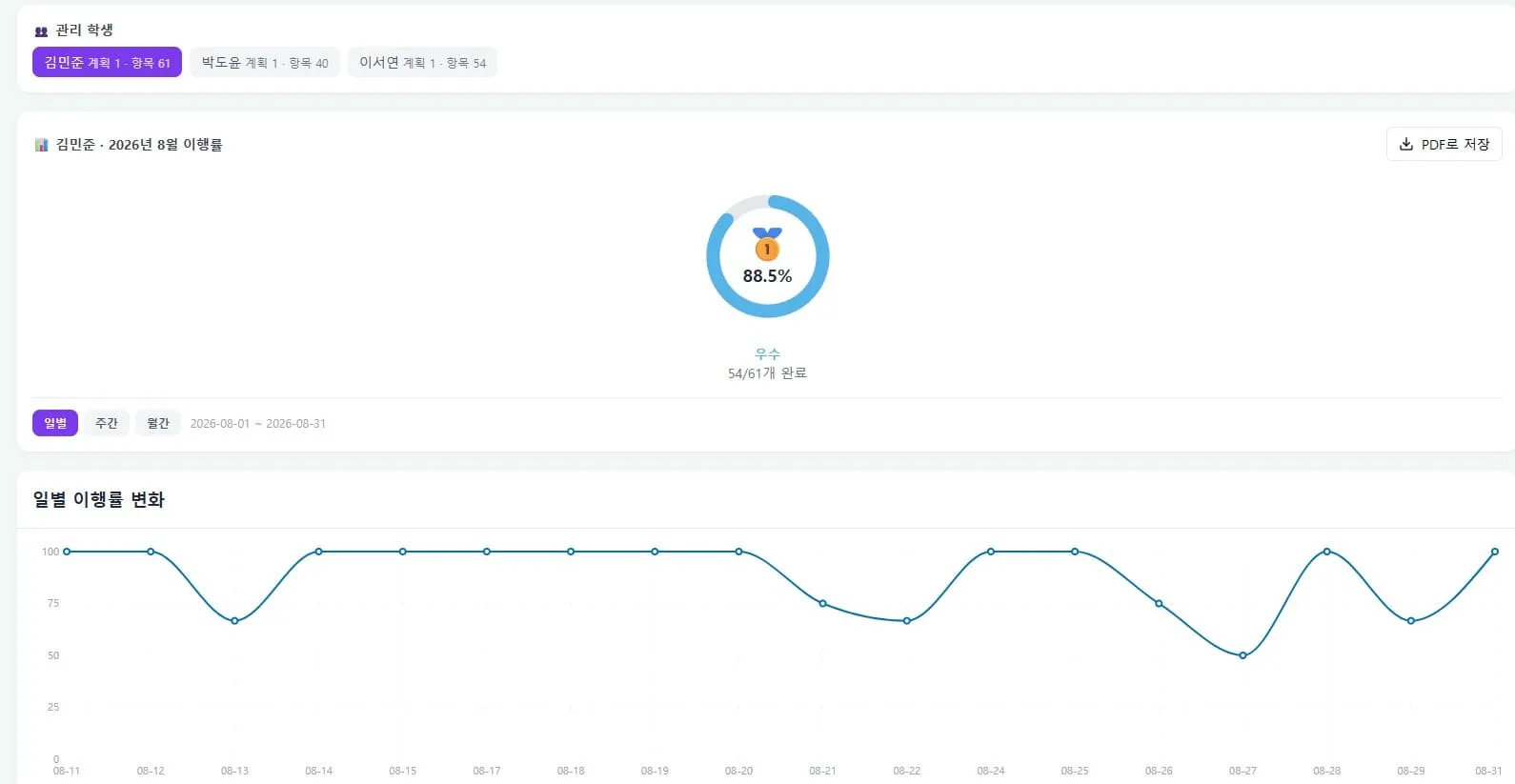
The completion rate and grade are calculated by a batch job early every morning, so a plan registered today is reflected in the totals from the next day. By clicking the daily, weekly and monthly tabs below the gauge, you can see trend graphs for each period, which helps you understand a student's self-directed learning pattern over the long term.
Useful extra features for running a remote academy
Reward approval
The list that appears in the Reward approval tab is generated automatically by a batch job, so teachers don't need to create it. Approve and reject buttons appear only on pending items, and a comment you leave is shown on both the student's and the parent's screens. In an environment like a remote academy, where students must be encouraged without meeting in person, this comment feature fills the communication gap.
Issuing a parent link
When you click the parent link button on the Assignment management tab, a report address that can be viewed without logging in is generated. However, this link is valid for only 7 days after it is issued, and if you issue it again, the previous link stops working immediately. If you shared the wrong address, reissuing the link cuts off the previous one right away, which makes it safer to manage. If you run a remote academy and need to stay in regular contact with parents, this feature is well worth using.
The change self-directed learning reports bring
Reports generated automatically on a daily, weekly and monthly basis give students a chance to look back on their own learning flow. For teachers, there's no need to build reports by hand each time, which reduces the administrative burden of running an online academy. Parents can also check their child's completion rate and grade trend with a single link, creating a trustworthy communication channel.
Wrapping up
If you run a remote academy and want to manage self-directed learning systematically, I recommend reviewing the flow that runs from assigning students to making plans, automatic completion rate calculation and sharing reports with parents. The ClassCanvas learning management system automates this process as much as possible, focusing on reducing teachers' workload and giving both students and parents transparent learning data. If you are thinking about running a remote academy, start by taking a careful look at the learning management features.
How to set up a remote academy
Phone inquiries: 1661-9155 (Korean only)
ClassCanvas: a total solution for online remote academies