Why look closely at a live video class program with board writing
If you run a remote academy with live video classes, you've probably asked yourself this at least once: "Is sharing my screen to show a PowerPoint enough, or do I need a program that lets me write on a board like a real blackboard?" For subjects like math or physics, where you need to show the solution process, board writing is close to essential rather than optional.
The problem is that even video class programs labeled "board writing supported" differ quite a lot in actual quality. With the same board-writing feature, one program writes smooth, clean strokes, while another stutters slightly with every stroke or shows it late on the students' screens. This article goes deep on just one of the criteria for choosing a class program: board-writing quality. The overall selection criteria, such as attendance, assignments, parent notifications and cost, are covered in 10 criteria to check when choosing a class program for an online remote academy.
4 criteria for checking board-writing quality
When comparing live video class programs with board writing, it's easy to check only whether board writing is supported and move on. But the quality you actually feel in class comes down to the items below.
Writing lag: This is the time between the teacher writing with the pen and the writing appearing on students' screens. If the lag is large, students feel like they're watching a recorded video rather than a live class. ClassCanvas is built to handle board-writing sync with ultra-low latency of around 50ms.
Line smoothness: Check whether lines look angular or broken when writing curves or cursive. Especially when writing math symbols or drawing graphs, jagged lines can lead students to misread the content.
Pen pressure sensitivity: If you use a tablet pen, it's also important that line thickness adjusts naturally with pen pressure. Without pressure sensitivity, it's hard to emphasize the parts you want to highlight. With ClassCanvas's fountain pen and brush pen, stroke thickness changes with how hard you press, so you can emphasize key parts right in your board writing. You can see how it looks in practice in an introduction to ClassCanvas board-writing tools.
Sync speed with student screens: When a teacher's board writing is sent to many students at once, differences in speed can mean only some students see the content late. The more students connect at the same time at your remote academy, the more you need to test this.
These four are things you can only really feel after using the program a few times, so we recommend trying board writing yourself through a demo or free trial before signing a contract.
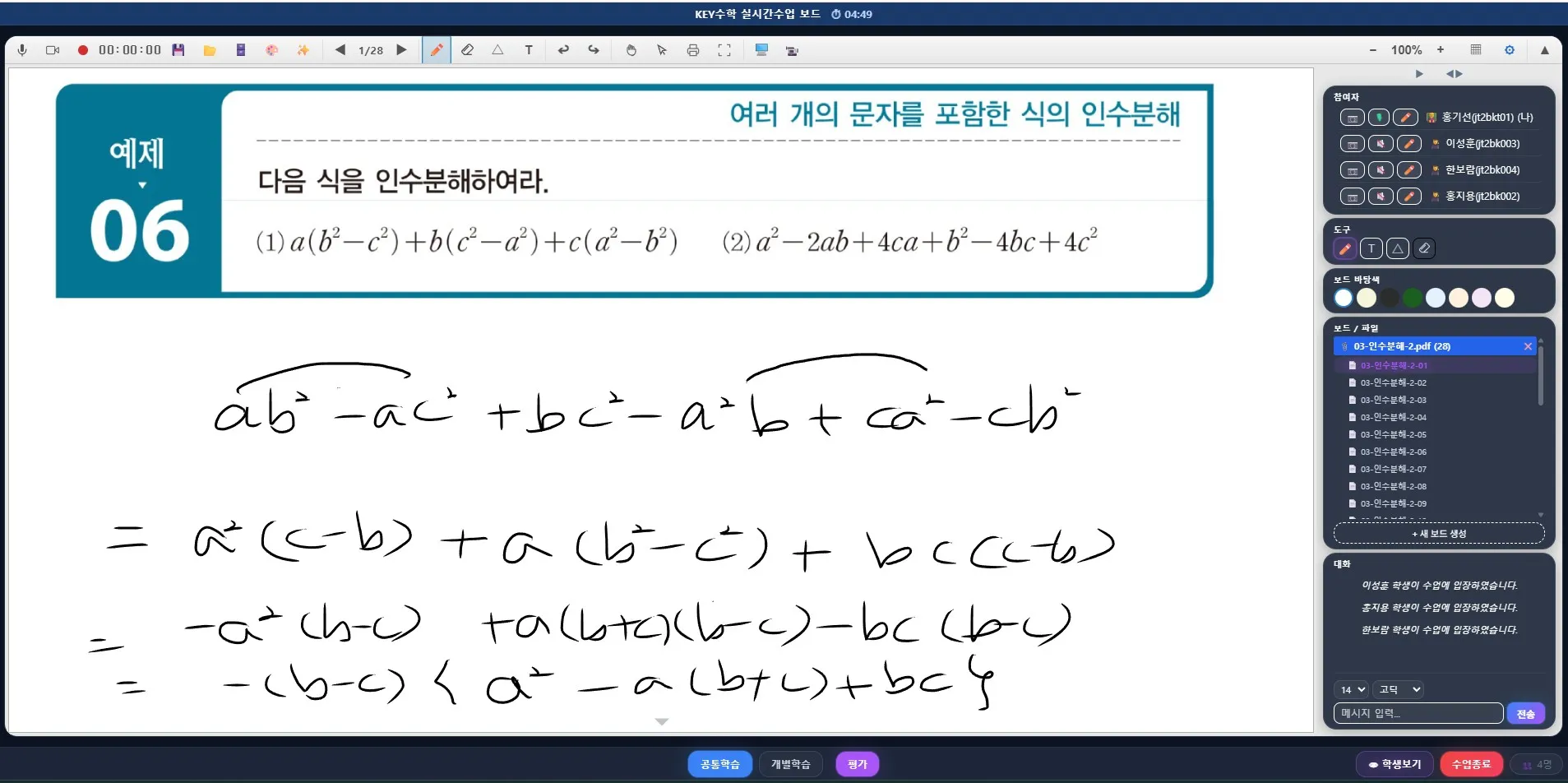
Half of board-writing quality comes down to the pen device
Even with the same program, board-writing quality varies greatly depending on the device you write with. Writing on the board feels most natural on a device with a dedicated pen.
Teachers: We recommend connecting a pen display to a PC or laptop. ClassCanvas recommends the Wacom One 13 touch (DTH134), and you can show the board on the Wacom One and the student view window on your laptop or PC screen, so you can see your students while writing on the board.
Students: We recommend a tablet that supports a pen (Galaxy Tab S series or iPad). There's no need to install a separate program; students join through a browser.
Devices to avoid: Low-end tablets that only work with fingers or capacitive stylus pens (touch pens with a blunt tip) produce thick, broken lines that make it hard to write formulas or small text, and they're prone to stray marks when your palm touches the screen.
If a teacher teaches from a tablet or smartphone, only classes with 4 or fewer students can be taught; with 5 or more students, the teacher must connect from a PC or laptop. You can find recommended models and setup instructions for each device in the class device guide.
What to check for board writing depending on your teaching style
When evaluating board-writing quality, you also need to consider who writes and where.
When only the teacher writes on the board
If your classes are mainly lecture-style, the teacher's board-writing feature alone may be enough. Even so, it's good to check whether you can write directly on top of a PDF textbook or PowerPoint while it's displayed. With ClassCanvas's watercolor brush, you can paint shapes or areas semi-transparently so that overlapping parts are visible at a glance.
When students can write too
If students solve problems themselves and the teacher needs to check their work, you need a board-writing feature for students. ClassCanvas's live class program uses a one-board-per-student approach, so each student writes on their own whiteboard, and screens don't get mixed up even when many students solve problems at the same time.
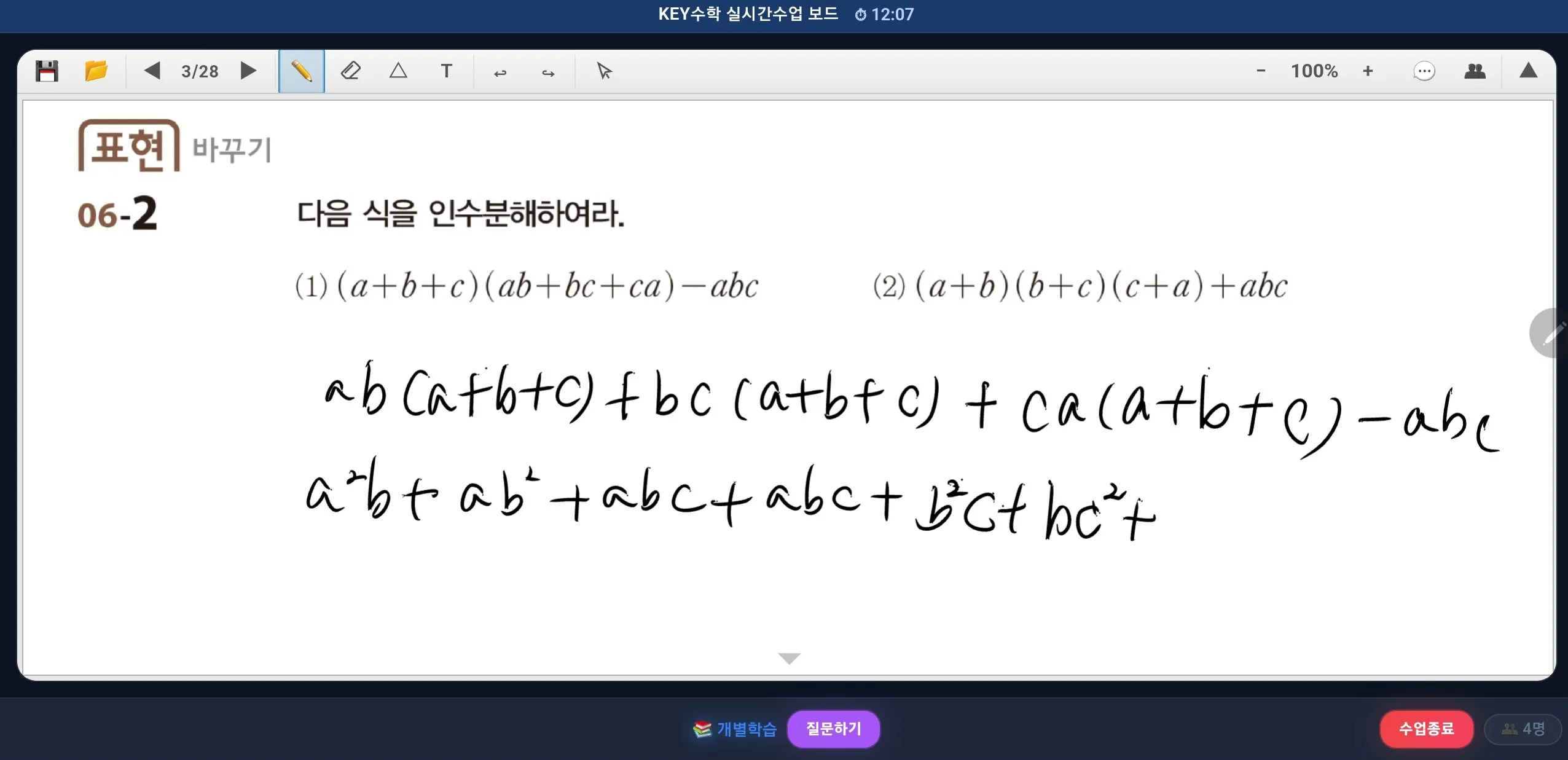
When the teacher gives feedback on top of the student's writing
In classes where individual feedback matters, such as video math tutoring, the teacher needs to be able to mark and correct directly on top of what the student wrote. With ClassCanvas's one-on-one feedback feature, you can mark and explain directly on the student's board, and you can also put a PDF textbook on the board and give feedback by marking directly over the student's solution.
Board writing has to be saved to be useful for review
The last criterion for board-writing quality is whether it remains after class ends. Even board writing that looked great in real time leaves students with nothing to review if it disappears when the class is over.
Can you save the board writing from class and open it again later?
Can students also view their own board writing again?
Can you replay the board-writing process as a video?
With ClassCanvas, lesson plan pages saved during a live class are collected by folder in learning management, and you can view them sorted into whole-class, feedback and shared. Students view their own lesson plans the same way. If you save the board screen, you can also replay it as a video lecture.
Wrapping up
When choosing a live video class program with board writing, don't stop at the fact that board writing is supported. It's important to actually try it and check writing lag, line smoothness, pen pressure sensitivity and sync speed. Add the pen device, who writes on the board (teacher, student or feedback), and saving and replaying board writing, and the board-writing environment that fits your academy's classes becomes clear.
ClassCanvas provides a live class program with one board per student, one-on-one feedback and ultra-low-latency board-writing sync, together with a learning management system for reopening your board writing. Try the free trial and write on the board yourself with your academy's pen devices.
Call us: 1661-9155 (Korean only)
ClassCanvas, the total solution for online remote academies